Add and style text
Add editable text elements and style their content, typography, position, and timing.
When to use it
Use text elements for headings, product descriptions, labels, and end cards. For captions synchronized to speech, use Subtitles. For layered animated titles, use Design Studio.
How to add text
Navigation: Editor → Text.
- Select the scene and insertion time if you are working on a video.
- Open Text.
- Choose Heading, Subheading, Body, or Caption.
- Click the inserted text on the canvas, or open Selected element actions → Edit properties.
- In Design → Content, choose Plain text and replace the sample content.
- Click outside the field to apply the change.
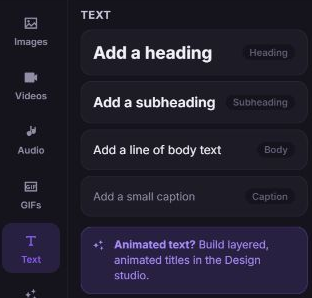
You can also double-click a text element on the canvas to edit it in place. With text selected, press Enter to begin inline editing.
How to change font, color, and alignment
- Select the text element and open Design → Typography.
- Search Font family (Google Fonts) and select a family. Use Show more fonts to expand the results, or enter a family name.
- Set Size, Weight, Color, and Align.
- Adjust Letter spacing and Line height if needed.
- Use Transform for case changes and Decoration for underline, line-through, or overline.
- Open Layout to position, size, or rotate the element.
Font preview needs access to the font service. Test your longest expected text at the intended output dimensions before rendering a template.
How to use HTML or a variable
- To use markup, open Design → Content → HTML and edit the HTML field.
- For changing content, first define a default in Variables.
- In the text or HTML field, use Insert a variable at the cursor, or enter a supported placeholder such as
{{title}}. - Enable Variables → preview to check the resolved content.
Use Design Studio when you want to build layered graphics without editing markup. For advanced HTML behavior, see Text and HTML elements.
How to set timing and animation
- In a video project, select the text and open Timing.
- Set Appears at (enterBegin) and Disappears at (exitEnd).
- Open Effects to add an Enter animation or Exit animation.
- Preview from before the text begins through its exit.
What happens next
The text stays editable in the project and exports as a text element. Save your changes, then preview or render.