Add shapes and edit SVG
Add vector graphics from the shape library and edit their markup, layout, effects, and timing.
When to use it
Use shapes for arrows, badges, frames, callouts, and decorative graphics. For visual fill and shape controls inside a layered composition, use Design Studio.
How to add a shape
Navigation: Editor → Shape.
- Open Shape.
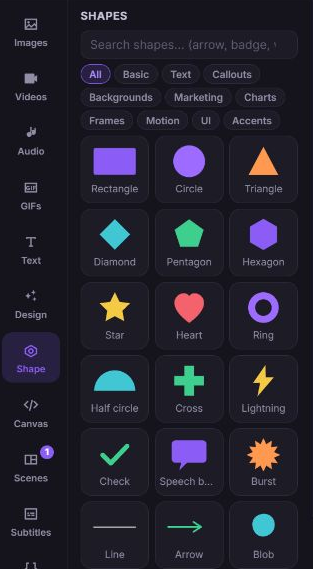
- Search using Search shapes… (arrow, badge, wave), or select a category.
- Browse All, Basic, Text, Callouts, Backgrounds, Marketing, Charts, Frames, Motion, UI, or Accents.
- Scroll to load more results.
- Click a shape to insert it into the current scene or canvas.
How to edit shape markup and layout
- Select the shape and open Design.
- In SVG markup, edit the SVG if you need to change its paths, fill, stroke, or other markup attributes.
- Leave the field to apply it. The editor reports whether the markup parses as SVG.
- Open Layout to change position, dimensions, rotation, opacity, or stacking order.
- For a video project, use Timing and Effects to control its window and animations.
The SVG inspector edits markup. It does not have the same visual fill and stroke controls as a shape layer in Design Studio.
Troubleshooting
SVG edits do not appear
Cause: The editor rejected markup that does not parse as SVG, or a placeholder cannot resolve.
Solution: Correct the markup in SVG markup, keeping a valid SVG root element. Define any variables in Variables, then apply the change again. Review the notification before continuing.
The shape library fails to load
Cause: The library request failed.
Solution: Use Retry in the panel and check your connection. Existing inserted shapes remain part of the project.
What happens next
The shape is saved as an SVG element. You can duplicate or delete it with Selected element actions and use Undo for local composition edits.