Timeline and timing
Use the timeline to decide when each element appears and how long the video or scene lasts.
When to use it
Use timeline controls to synchronize text, pictures, footage, sound, and captions. The playhead marks the time currently shown on the stage. A clip's left and right edges mark its visible or audible window.
The timeline is available for video projects. Image projects use Layers instead.
How to change an element's timing
Navigation: Editor → select a visual element → Timing → Timeline window.
- Select a clip on the timeline.
- Drag the body left or right to move it in time, or drag its edges to trim its window.
- For precise values, open Timing.
- Set Appears at (enterBegin) and Disappears at (exitEnd).
- If the element has enter or exit animations, adjust Enter anim ends (enterEnd) and Exit anim starts (exitBegin).
- Scrub the ruler or play the video to check the change.
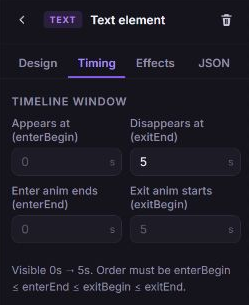
Times are local to the selected scene when you are editing a scene. Global overlays uses the whole-movie timeline. Timing a clip is separate from trimming a video source or trimming an audio source.
How to set the project length
Navigation: Editor → project duration in the top bar; on compact screens, open Project settings first.
- Click the project duration.
- Enable Fit content automatically to follow scenes, timed elements, audio, and captions as they change.
- Set Minimum project length if you want to preserve extra time beyond the content.
- For a fixed length in a project without scenes, turn off Fit content automatically and set Project length. A project with scenes always includes the full scene sequence and uses Minimum project length for additional time.
- Use Fit duration in the timeline to remove extra time or fit content.
New video projects use automatic duration. An empty automatic timeline starts at 10 seconds until timed content determines its length. Existing documents keep their saved timing until you enable automatic fitting.
Open-ended text and images follow the containing timeline. Audio with Match project length or Match scene length follows the window without extending it. For scene durations, see Manage scenes.
How to fix content that is cut off
- Look for content exceeds duration above the timeline.
- Click Extend project to fit, or Extend scene to fit when editing a scene.
- Preview the end of the timeline again.
The warning means content extends past a fixed boundary and will be cut off. Extending the boundary changes the length of the output; check your credit estimate and plan limits before rendering.
How to organize tracks and split clips
- Drag a visual clip to a different V track to change its stacking order. Higher visual track numbers render on top.
- Use the track controls to add a visual or audio track. Delete empty track removes an unused extra track.
- Select a clip and put the playhead inside it.
- Open its element actions and click Split at playhead, or press S outside a field.
- Use Duplicate or Delete from the same menu to copy or remove an element.
Deleting an element changes the project; it does not delete the uploaded source. Editor Undo can reverse local composition edits.
Timeline navigation
| Control | Action |
|---|---|
| Play (Space) / Pause (Space) | Start or stop preview playback. |
| Previous frame / Next frame | Move one frame at a time. |
| Previous start point (Home) / Next start point (End) | Jump between content start points. |
| Loop (L) | Repeat preview playback. |
| Mute (M) | Mute preview audio. |
| Timeline zoom (Ctrl+scroll) | Change the time scale for precise edits or an overview. |
| Collapse timeline / Expand timeline | Hide or restore timeline lanes. |
Drag or click the time ruler to scrub. Snapping helps align clip boundaries and other timing targets; toggle it with the stage Toggle snapping control. Yellow clip handles adjust animation windows.
What happens next
The timeline reflects your placement and duration changes. Preview the full movie when using scenes so you can check the sequence and transition overlaps.