Project settings
Choose the output size and format before arranging your content. Project settings apply to the composition; each element has separate layout controls.
Before you begin
Open the project you want to edit. Use Save or Export JSON before starting a new project or making a version you want to preserve. New → Video project and New → Image project start fresh compositions; changing the output-format selector does not convert one project type into the other.
Where to find the settings
- Second toolbar row: resolution preset, dimensions, the Project: duration control, fps, background-color swatch, and output format. These controls are directly visible on desktop; there is no desktop Project settings gear.
- Project name at the upper left: the composition's name and basis for the output filename.
- Project inspector: overview, video thumbnail, conditional image snapshot time, and local validation. With a tool panel open, click uncovered background inside the output frame, not the checkerboard outside it. The panel header changes to PROJECT. A visual covering the whole frame blocks this background-click route; pressing Escape returns to the library instead of opening project properties.
- Render: image format, quality, and transparency, plus render status and download controls.
The top-bar settings and project inspector are separate views. Selecting an element changes the inspector to that element's properties.

How to choose dimensions and format
- Enter a descriptive Project name.
- Find the settings row directly below the main toolbar.
- Choose a Resolution preset from the selector at the left of that row. It shows the preset name and pixel dimensions.
- For an exact size, choose custom, then enter Width (px) and Height (px).
- Click the background-color swatch immediately to the left of the output-format selector to set Background color.
- For a video, choose a hosted output format: mp4, mov, avi, or webm. For an image, choose png, jpg, or webp.
- Inspect the stage and reposition elements after changing the aspect ratio.
Tap the gear immediately to the right of the vertical three-dot button (⋮) at the left of the second toolbar row. This opens Project settings, where the resolution, dimensions, background, format, and available time controls are grouped. To undo a recent change, open that three-dot menu and choose Undo.
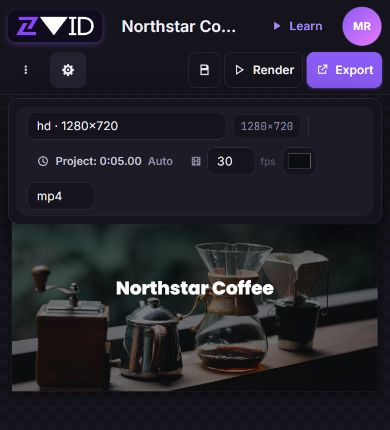
Result: The composition uses the new output frame. Existing element dimensions and coordinates need a fresh visual check; changing from landscape to portrait is not a finished redesign. Click the curved left-arrow button (Undo) immediately after Learn in the upper toolbar to reverse a recent settings change.
| Common preset | Dimensions | Shape |
|---|---|---|
| hd | 1280 × 720 | Landscape |
| full-hd / youtube-video | 1920 × 1080 | Landscape |
| squared / instagram-post / instagram-feed | 1080 × 1080 | Square |
| youtube-short / tiktok / instagram-reel / instagram-story | 1080 × 1920 | Portrait |
| custom | Your width and height | As entered |
See all resolution presets and plan limits before choosing large dimensions. Preset names identify canvas sizes, not an automatic publishing action.
How to set video duration and frame rate
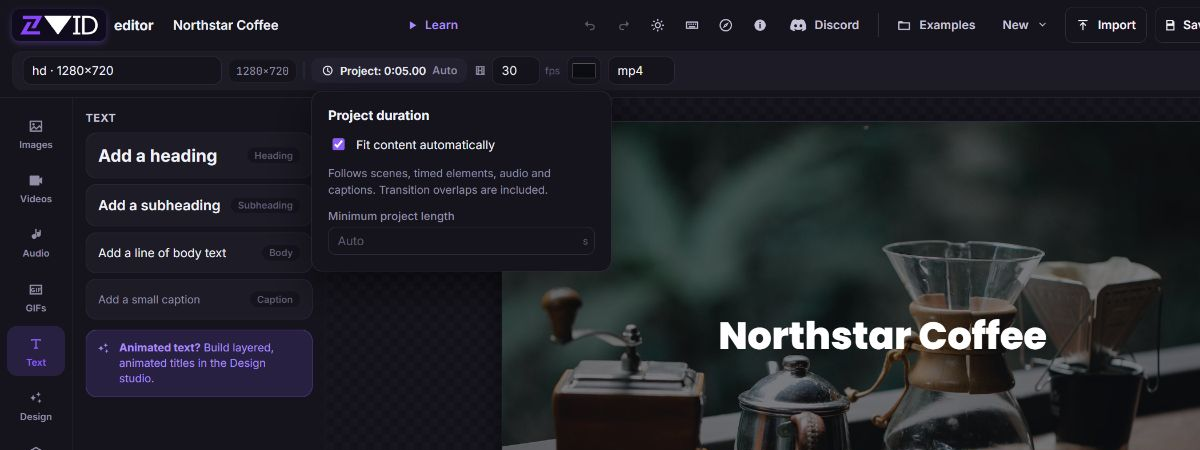
- In the second toolbar row, click the control showing Project: and the current duration to open the duration settings.
- Enable Fit content automatically to follow scenes, timed visuals, audio, and captions. Set Minimum project length only when you want additional time beyond the content.
- Disable Fit content automatically for a set-length composition. Set Project length; with scenes, the field reads Minimum project length, because the whole scene sequence is included.
- Set Frame rate, marked fps, to an integer from
1to60for hosted rendering.30is the starting value for a new video project. - Play the full composition and check its ending. Review timeline duration if content extends beyond the intended length.
Open the gear beside the top toolbar's vertical three-dot button (⋮) first. The duration and frame-rate controls are inside Project settings.
The editor's frame-rate control and video-format list are broader than the hosted renderer's accepted values. An editable value is not a guarantee that a cloud render will accept it. The supported hosted video formats are mp4, mov, avi, and webm.
Starting values and conditional controls
| Setting | New video project | New image project |
|---|---|---|
| Name | untitled-video | untitled-image |
| Resolution | full-hd, 1920 × 1080 | instagram-post, 1080 × 1080 |
| Background | Dark, #0b0d12 | White, #ffffff |
| Format | mp4 | png |
| Duration | Auto | No duration control |
| Frame rate | 30 fps | No frame-rate control |
| Additional output controls | Thumbnail source in the project inspector | Quality and transparency in Render; snapshot time appears for animated custom content |
Imported projects, saved projects, examples, and templates keep their own settings. Do not use these starting values to infer the values of an existing composition.
How to set a video thumbnail
- In a video project, open Text or another tool panel, then click uncovered background inside the output frame. Avoid the surrounding checkerboard and any visual element. The left panel's header changes to PROJECT.
- Expand Thumbnail.
- Paste a direct, reachable image address in Image URL.
- Save the project and inspect the rendered video's cover where your chosen player displays it.
Open Text from the bottom tool strip, then tap uncovered background inside the output frame above the sheet. The bottom Properties sheet changes to PROJECT. Expand Thumbnail to reach Image URL; tap Done at the sheet's upper right when finished.
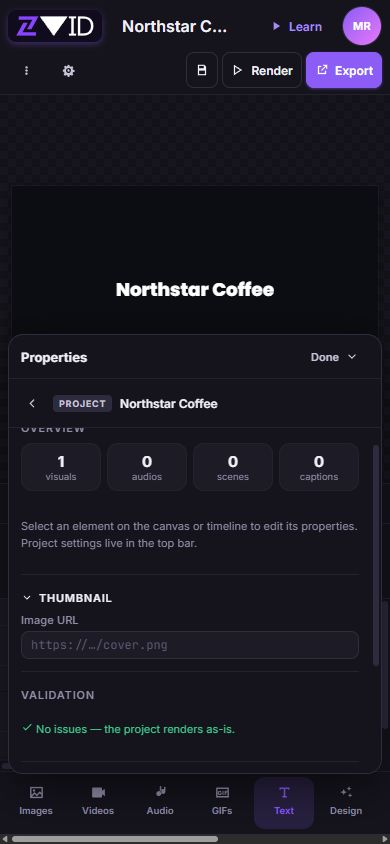
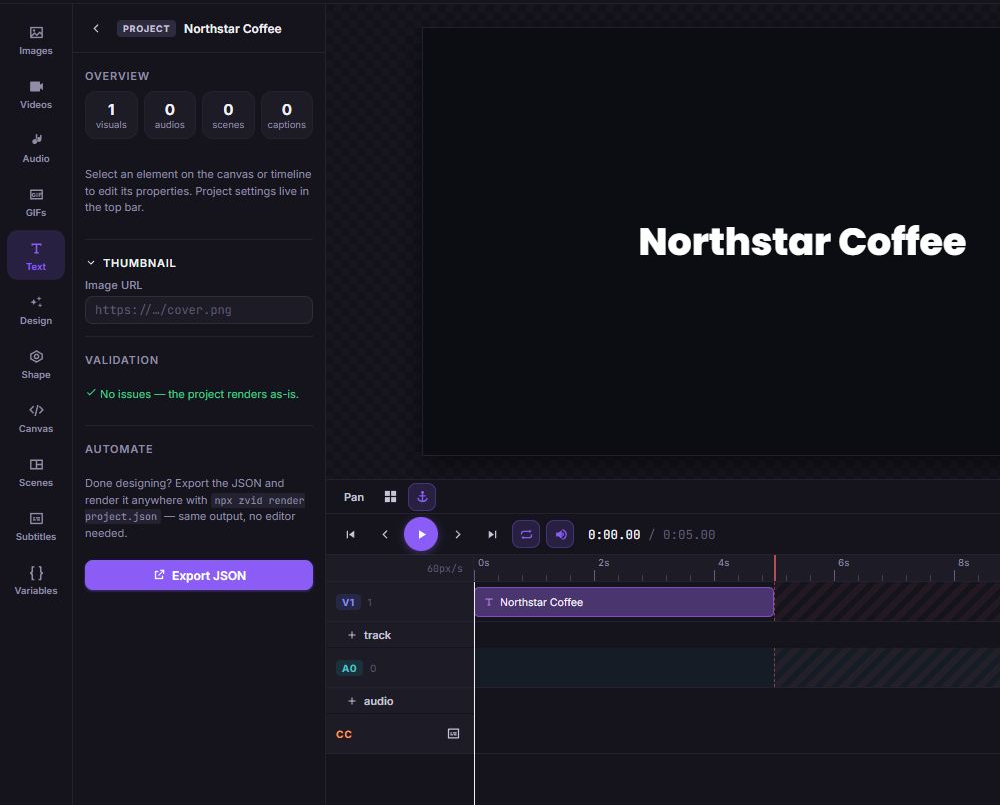
Clear Image URL when you want to remove the custom thumbnail.
This route needs a visible part of the frame that no element covers. Set the thumbnail while that background is accessible; clicking a full-frame visual selects the visual instead.
This field supplies an image for the video's embedded cover/thumbnail stream. It does not add a visible opening card to the timeline. To show the image as part of the video, add an image element. Image projects have no separate thumbnail field because the rendered image is its own output.
Image quality, transparency, and snapshot time
In Render image, Quality is available for JPG and WebP, with a starting value of 90 and a range of 1–100. PNG is lossless and does not use this control. Transparent background is available for PNG and WebP, not JPG.
When changing an image that already has quality or transparency settings, use Render → Format. That selector removes options the new format does not support. Check all options again before starting a render.
The project inspector shows Snapshot time → Capture at (seconds) only when an image project contains a visual with custom animation CSS, JavaScript, or an animation duration. Leaving it unset captures the settled animation state. An explicit value selects a moment for supported animated content in the rendered image; the stage continues its live preview. See the image-project walkthrough.
Example: a Northstar Coffee opening card
- Start a video project and name it Northstar Coffee.
- Choose hd · 1280×720,
30fps, a dark background, and mp4. - Open duration settings, turn off Fit content automatically, and set Project length to
5seconds. - Add the product image and heading, then inspect their framing and timing.
- Preview the five-second composition and save it. Use Export → Download JSON for a portable copy.
Troubleshooting
| Symptom | Likely cause | Recovery |
|---|---|---|
| Width and height fields are missing | A named preset is selected | Choose custom, or keep the preset's displayed dimensions |
| Thumbnail or snapshot settings are missing | An element is selected, or the snapshot field is not applicable | Open the PROJECT inspector; snapshot time also requires qualifying animated content |
| The project remains longer than the entered length | Scenes or automatic duration require more time | Inspect the duration mode, scene sequence, and content end; see Timeline |
| Render rejects a format or frame rate | The editor accepts more values than the hosted renderer | Choose a supported hosted video format and an integer frame rate from 1 to 60 |
| Snapshot time is absent | The project is a video or has no qualifying custom animation content | Use an image project and add an animated design only if a captured animation state is needed |
| Local validation is clear but rendering fails | Local checks do not prove account allowance or remote-source availability | Read the render error and check render troubleshooting |