Add animations and transitions
Animate how an element enters and leaves, transition between footage, or build layered motion in Design Studio.
When to use it
Use enter and exit effects for individual titles and graphics. Use video transitions to join footage, and scene transitions to join whole compositions.
Before you begin
Open a video project and add the element you want to animate. Give it enough time on the timeline for its enter, visible, and exit windows.
How to animate an element
Navigation: Editor → select an element → Effects.
- Select a visual element on the stage or timeline.
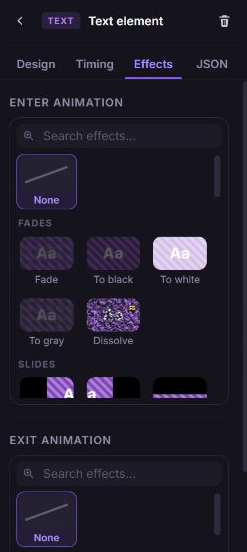
- Open Effects → Enter animation and choose an effect.
- Set its Duration.
- Choose an effect under Exit animation and set its Duration.
- Play from before the element begins to after it ends.
The enter effect runs from Appears at (enterBegin) to Enter anim ends (enterEnd). The exit effect runs from Exit anim starts (exitBegin) to Disappears at (exitEnd). Use the Timing tab or yellow clip handles for precise boundaries.
How to transition between video clips
- Add two video elements in the same scene or editing context.
- Select the first video and open Effects.
- Expand Transition to another video.
- Select Target video, then choose Effect.
- Set Overlap duration and review both clips' timing.
- Preview the join, then inspect a render for the final appearance.
Set Target video to none to remove the link. A video with a linked transition suppresses its separate exit animation during rendering.
How to adjust color filters
- Select an image, video, or SVG element.
- Open Effects → Color filters.
- Adjust Brightness, Contrast, Saturation, Hue rotate, Blur, Invert, or Color tint.
- Check the stage and the final render when color matching matters.
The filter controls are separate from animation timing. See the filter reference for their JSON behavior.
How to create layered or custom motion
For a visual workflow, open Design → New design, add layers, and use each layer's Animation section. Design Studio provides entrance, loop, and text animation presets with the controls relevant to each preset.
For existing text or SVG elements with custom animation code:
- Select the element and open Effects → Animation code (customCode).
- Edit CSS and, if required, JavaScript.
- Set Loop duration and review any warning.
- Preview the animation and render a test output before reusing it in a template.
Important notes
Browser previews approximate some transition effects. Effects marked ≈ can differ from the rendered output. Chroma key is represented by a badge in the editor. See effect preview differences and preview guidance.
What happens next
Effects remain editable in the project. Save your changes and render when you are ready to verify the complete result.