Visual editor overview
The Zvid Editor lets you arrange media, text, and graphics on a canvas, control their timing, and render a finished video or image.
When to use it
Use the editor to create a video visually, customize a saved project, or design a reusable template for automation. A project is the editable composition; a render is the finished media file produced from it.
You can edit and export JSON without signing in. Cloud saving, account uploads, saved designs, and rendering require a Zvid account. Rendering uses credits.
How to create a project
Navigation: Editor → New.
- Open the editor. On a compact screen, open More editor actions to reveal New.
- Click New, then Video project or Image project.
- Enter a Project name in the top bar.
- Choose your dimensions and output settings.
- Add text, images, or other media.
- Save your project, preview it, then render when ready.
New replaces the current working document. Save the current project or download its JSON before starting another composition.
Find the right part of the workspace
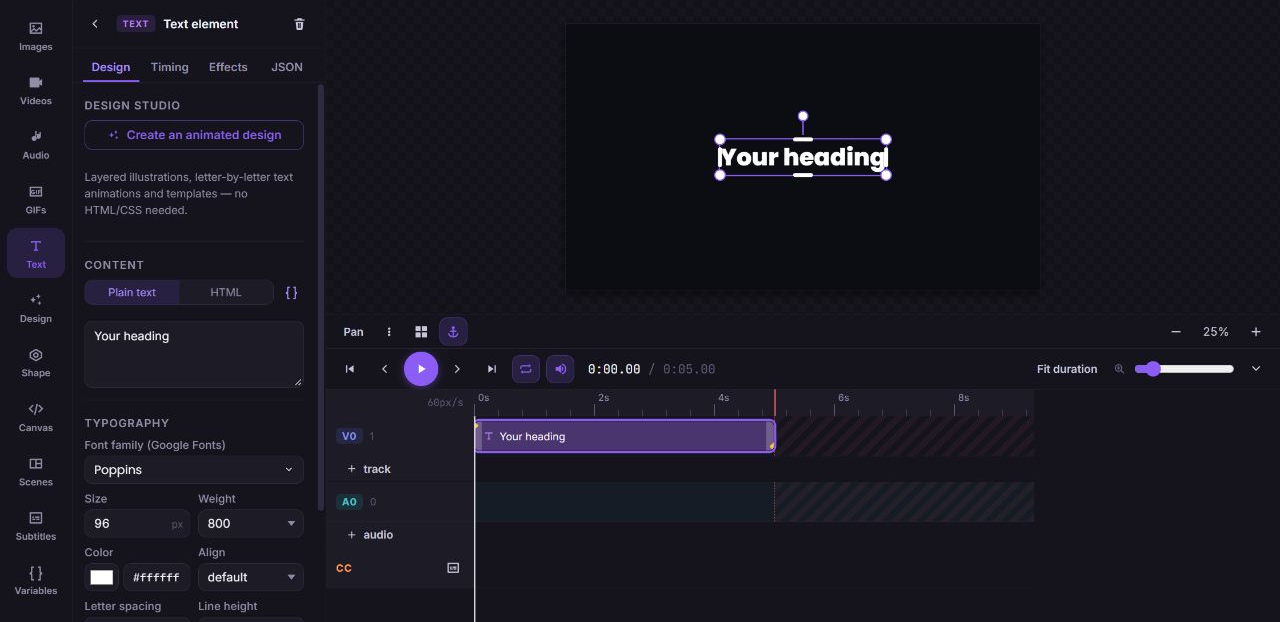
| Area | What you use it for |
|---|---|
| Top bar | Name, project settings, undo/redo, examples, import, Save, Render, and Export. |
| Tool rail | Images, Videos, Audio, GIFs, Text, Design, Shape, Canvas, Scenes, Subtitles, and Variables. |
| Tool panel | Browse content or edit the selected element's properties. The inspector replaces the library in this panel; Back to library returns to it. |
| Stage | View the composition and select, move, resize, and rotate elements. |
| Timeline | Set when content appears, trim clips, work with audio and scenes, and control playback. |
| Account menu | My projects, Save as template, Open dashboard, credit balance, and Sign out. |
A visual element's properties use Design, Timing, Effects, and JSON tabs. Image projects hide timing tools and add Layers for arranging static elements.
If a newly inserted element is selected but the library is still open, click it on the canvas or use Selected element actions → Edit properties to open its inspector.
How to use a smaller screen
- Open Project settings for dimensions, frame rate, background, and output format.
- Open More editor actions for Examples, New, Import, Shortcuts, Product tour, and Help.
- Swipe the bottom tool rail to reveal more tools. Tap a tool to open its panel; tap Done to return to the canvas.
- Select an element and use Selected element actions for operations such as duplicate or delete.
- Use Pan canvas to move around a zoomed canvas, then turn it off to resume editing.
What happens next
Your composition stays editable as project JSON. Save creates or updates a cloud draft; Render produces media; Export gives you JSON and code snippets for automation. These are separate actions.
Help and related documentation
Open Product tour for a walkthrough, or Help → Chat with support. You can also contact Zvid at https://zvid.io/contact.