Search Zvid's stock library
Search for media from inside the editor, insert a result into your composition, and adjust it with the same controls used for your own uploads.
When to use it
Use Zvid's stock library for supporting footage, backgrounds, decorative images, GIFs, music, and short sound effects. Use Your uploads for your own product photography, branding, and recordings.
Before you begin
Choose the media tool that matches what you need. Video, audio, and GIF tools are available in video projects; image projects offer still-image search. Library availability and results can vary. If the editor shows an availability or account message, follow that message rather than assuming every media category is available.
In a scene-based video, select the intended scene or Scenes → Global overlays before inserting content. Put the playhead near the desired start, then check the resulting timing after insertion.
How to find and add an image, clip, or GIF
Choose Images, Videos, or GIFs in the tool rail down the left edge of the editor, then find Stock in that panel.
To reverse an insertion, use the curved left arrow in the top toolbar (Undo), immediately to the right of Learn.
- Open the media tool and scroll past Your uploads to Stock.
- Enter a short descriptive search term, such as
coffee beans, in the search field. PressEnterto run the search immediately. - Browse the result thumbnails. Scroll down for more results; use Load more if that button appears.
- Click a result once to insert it. To position a visual more precisely, drag the result onto the canvas instead.
- Click the new element on the canvas to open its settings, then check Design → Source. Wait for it to load before judging the composition.
- Set the desired frame fit and position, then check Timing in a video project.
- Click the right-pointing triangle in the playback row below the stage (Play) to inspect motion. A stock video's thumbnail is not a full playback preview.
The tools run horizontally along the bottom; swipe the strip to find Images, Videos, or GIFs. Tap the inserted element on the canvas to open its editing controls. Done at the upper right closes the bottom Properties sheet. For Undo, open the separate vertical three-dot button near the left of the top toolbar's second row.

Search results depend on the query and library availability. Select a thumbnail to add the image, then inspect its loaded source and layout.
Result: The result becomes an independent project element. Its source is referenced by the project, and its layout and timing can be edited. Use Undo if you inserted the wrong result. Deleting the element removes it from the composition; it does not remove the item from the stock library.
Clicking and dragging can give a visual different initial placement and dimensions. Check Layout after either action rather than relying on the thumbnail's proportions.
How to replace an existing image with a stock result
- Select the image you want to replace.
- Click the vertical three-dot button (
⋮) below the stage, immediately to the right of Pan and above the timeline. This is Selected element actions; choose Replace image…. You can also right-click the image and choose Replace image…. - In the Images panel, confirm the replacement banner names the intended image.
- Find a result under Stock and click it once.
- Inspect the replaced image's crop, dimensions, and appearance.
The old image's position, size, timing, and effects stay in place. Click Cancel in the replacement banner before choosing a result to keep the original source. After replacement, use Undo to return to the previous source. This workflow applies to image elements; it is not a general video-replacement command.
How to preview and add music
Choose Audio in the left tool rail, then Music → Stock.
- Enter a term in Search music….
- Click the purple right-pointing triangle in the circle at the far left of a track's row (Play preview) to listen without adding it. Click the same button again to pause.
- Click the track's name and artist area in the middle of the row to add it to the timeline. The duration is shown at the right.
- Select the inserted audio clip and inspect Timeline placement.
- Set Volume in Mix, then listen with the other audio and footage.
Open Audio from the bottom tool strip, then scroll past Your uploads to Music. The preview button stays at the left of each row. Done at the upper right closes the sheet.
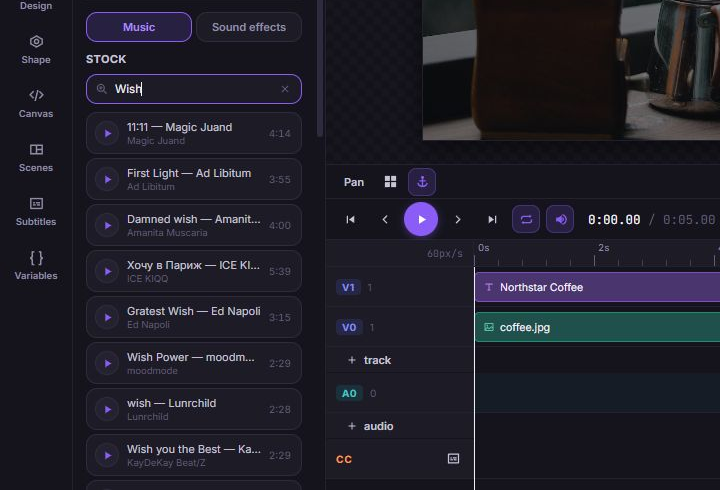
Previewing a track and adding it are separate actions. Music does not appear on the canvas. If music search is unavailable, use Your uploads, Add audio by URL, or Sound effects.
A result can fail to preview even when it appears in search. If you see Could not play this track, try another result or use a reachable upload or direct audio URL. Clicking preview alone does not add an audio element.
For a background track that follows the composition, use Match project length or Match scene length. Review audio timing and looping before applying this setting to narration.
How to choose a sound effect
Choose Audio in the left tool rail, then Sound effects.
- Put the playhead at the intended cue.
- Search for an effect, such as
chime,pop, orwhoosh. - Click the purple right-pointing triangle in the circle to the left of its name (Play preview) to listen without inserting it. Click the same button again to pause.
- Click the effect's name and duration area to add it.
- Select the audio element and refine Starts at (enter) and Volume.
- Play from before the cue through its end. Check whether the insertion extended the timeline.
Open Audio from the bottom tool strip. In its sheet, scroll past Your uploads to find Music and Sound effects. Done at the upper right closes the sheet.
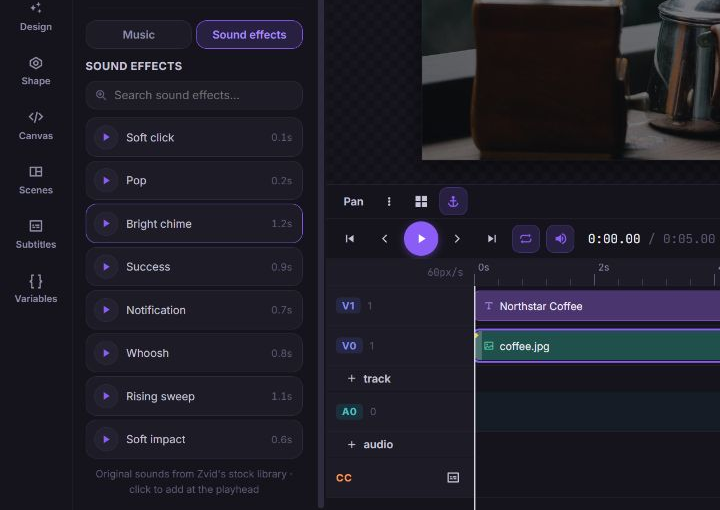
The effect's preview button does not insert it. Use Undo to remove an accidental addition or delete the selected audio element.
Library controls
| Control or state | What it means | Next action |
|---|---|---|
| Search field | Searches the current media category | Use a concise visual or mood description and press Enter |
Cross (×) inside the far-right end of the search field (Clear search) | Removes the query | Browse the initial results again |
| Thumbnail | A visual result you can insert | Click to add, or drag to the canvas; then inspect the actual source |
| Play preview / Pause preview | Auditions an audio result | Click the track row separately when you are ready to add it |
| Load more | Additional results are available after automatic loading pauses | Click once and wait for the next set |
| Retry | The library request failed | Retry the search and inspect any new message |
| No results | The current query returned no matching items | Try fewer words or another term |
| Library unavailable | This media category cannot currently be searched | Use an upload or direct URL, or switch category |
The shape catalog has its own search and category controls under Shape. See Add shapes and edit SVG.
Example: supporting visuals for Northstar Coffee
- Open Images → Stock and search
coffee beans. - Choose a result with clear space for a headline and insert it.
- In Design → Source, compare contain and cover. Keep the setting that preserves the important details of the photo.
- Add the heading Northstar Coffee and inspect its contrast against the image.
- In a video project, set the photo's window to
0–5seconds. - Open Audio → Sound effects and preview Bright chime for the headline reveal. Add it only if it suits the composition, then check its timing and volume.
- Preview and save the composition.
Search results can change. For a repeatable tutorial or template, keep the chosen source in the saved project rather than relying on the same result appearing in the same search position later.
Troubleshooting
| Symptom | Likely cause | Recovery |
|---|---|---|
| Search results are empty | The term is too narrow for the selected category | Clear the search and try a shorter term in the correct media tool |
| The library shows an error | The request failed | Use Retry; if it still fails, continue with an upload or direct URL |
| Music is unavailable | Music search is not available for the current session | Use uploaded audio, an audio URL, or Sound effects |
| A music preview says Could not play this track | This result's preview could not play in the current session | Try another result or use a reachable upload or direct audio URL; previewing alone does not insert a track |
| A thumbnail appears but the inserted source fails | Preview and full media are separate resources | Check Source, try another result, or use a known accessible upload |
| A click changes an existing image instead of adding one | Image replacement mode is active | Finish the intended replacement or click Cancel in the replacement banner before adding another image |
| The new element is not visible | The playhead, selected scene, or stacking order hides it | Select it in the timeline or layers list and check its timing and layout |