Add and edit subtitles
Create word-timed captions that are drawn into your rendered video.
When to use it
Use subtitles for spoken content or synchronized captions. Use text elements for titles that are not part of a caption sequence.
Before you begin
Open a video project. Have a caption file ready if you want to import captions, or use the playhead to add them manually.
How to import captions
Navigation: Editor → Subtitles → Captions.
- Click import.
- Choose an SRT, VTT, ASS/SSA, or Whisper JSON file.
- Wait for the imported-caption notification.
- Select a caption to review its text and timing.
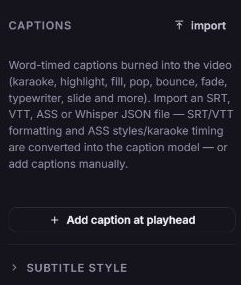
Importing a file replaces the current inline captions. Applicable imported styles can also update subtitle styling. Save a copy first if you need to keep the old captions; use Undo for an unintended local import.
If an imported project already references a subtitle URL, the panel displays that URL with Load into editor. Click it to fetch and convert those captions into an editable list. Successful loading replaces the URL reference with inline captions. There is no separate URL-entry form in this panel; see the subtitle reference for URL-based project JSON.
How to add and edit a caption
- Move the playhead to the caption's start.
- Open Subtitles and click Add caption at playhead.
- Select the caption in the list.
- Set Start, End, and Text.
- In Word timings, adjust each word's text, start, and end as needed.
- Scrub or play that interval to check synchronization.
Editing Text redistributes word timings proportionally. even retime redistributes the current words across the caption; review the result before using karaoke or other word-level animations.
How to split, merge, or delete captions
- Select a caption.
- Click split to divide it at its midpoint, or merge ↓ to combine it with the following caption.
- To shorten long captions in bulk, set Max words per line, then click Split captions.
- To remove one caption, click Delete caption in its row.
These operations change the project's caption list. Undo can reverse local caption edits during the editing session.
How to style subtitles
- Expand Subtitle style.
- Choose Mode to control how words appear or highlight.
- Set Font family, Font size (px), and Color.
- For modes using active-word styling, set Active word color, Active word background, and Word box radius as applicable.
- Adjust Bold, Italic, caption Background, Box padding, Box radius, Outline width, and Outline color.
- Set Position, Vertical margin, Horizontal margin, and Text transform.
- Preview the captions over the actual background.
The mode-specific controls appear when relevant. Inspect a rendered output when exact line wrapping, font appearance, or word highlighting matters.
Troubleshooting
Caption import fails
Cause: The file could not be parsed or contained no recognized captions.
Solution: Check the import error notification, confirm the file's format and content, and import it again. For a URL-based project, confirm that the caption URL can be fetched by the browser before using Load into editor.
What happens next
Captions appear in the subtitle lane and on the stage at their scheduled times. Save, preview the movie, then render to verify the finished captions.