Create your first video
Build a five-second Northstar Coffee title card with a photograph and a heading. You will arrange two layers, preview the composition, preserve an editable copy, and download a rendered MP4.
For a video introduction, watch How to use the Zvid editor on YouTube.
Before you begin
Open the Zvid editor in a desktop browser. You can create the composition and export its JSON without signing in. Account saving and cloud rendering require signing in; rendering spends credits. Check credits and limits before submitting a render.
Use the hosted sample photo below, or substitute a direct image URL you control. The source must remain reachable when Zvid renders it. This walkthrough does not require an upload.
Before choosing New, save your current project or use Export → Download JSON. Starting a new project replaces the composition on screen.
1. Create a video project
- Choose New → Video project in the upper toolbar.
- Set Project name to
Northstar Coffee. - Choose hd · 1280×720 in the resolution preset at the left of the second toolbar row.
- Keep the default 30 fps, dark background, mp4 format, and Auto duration. The content you add will determine the five-second length.
Tap the vertical three-dot button (⋮) at the left of the second toolbar row, then New → Video project. The adjacent gear opens Project settings, including the resolution preset. On desktop, these settings are directly visible in the second toolbar row.
See project settings for custom dimensions and fixed duration.
2. Add the background photo
-
Open Images → Add image by URL.
-
Paste this address:
https://cdn.zvid.io/library/docs/editor-guide/northstar-coffee.jpg -
Click Add image. The photo appears as the first visual, with a five-second visible window.
-
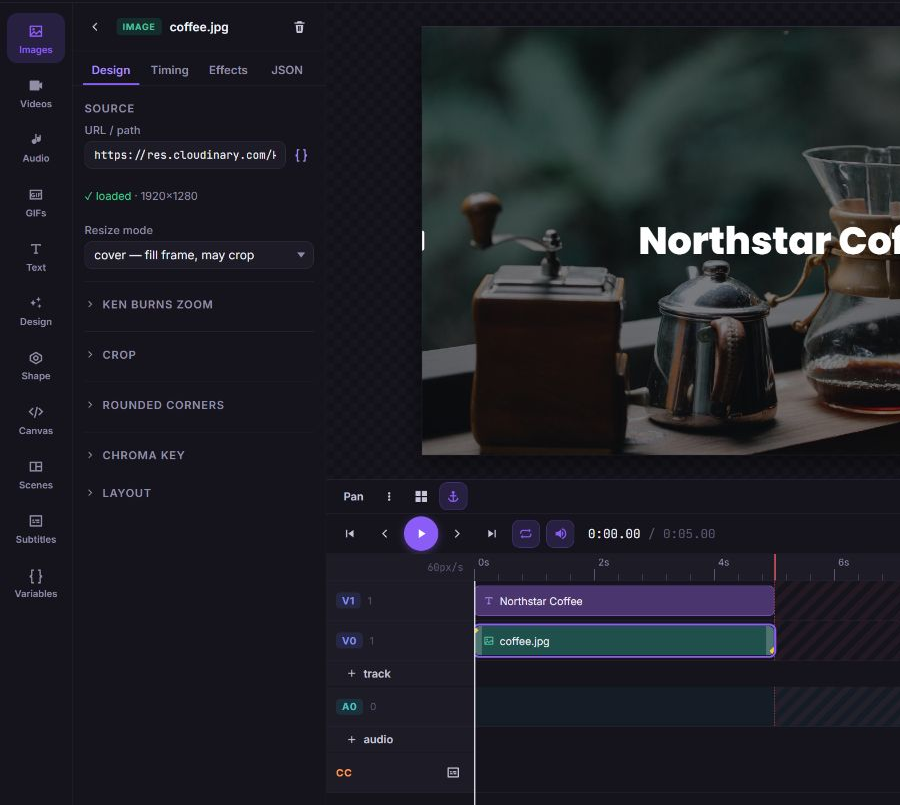
Click the photo on the canvas to open its settings in the left panel. In Design → Source, confirm the image has loaded.
-
Set Resize mode to cover — fill frame, may crop. This fills the frame and may crop the photo's edges.
-
Expand Layout and set Opacity to
0.45. The dark background now shows through the photo, helping the white title stand out.
Find Images in the horizontally scrolling bottom tool strip. Tap the photo on the canvas to open its settings in the bottom Properties sheet; tap Done at its upper right after editing.
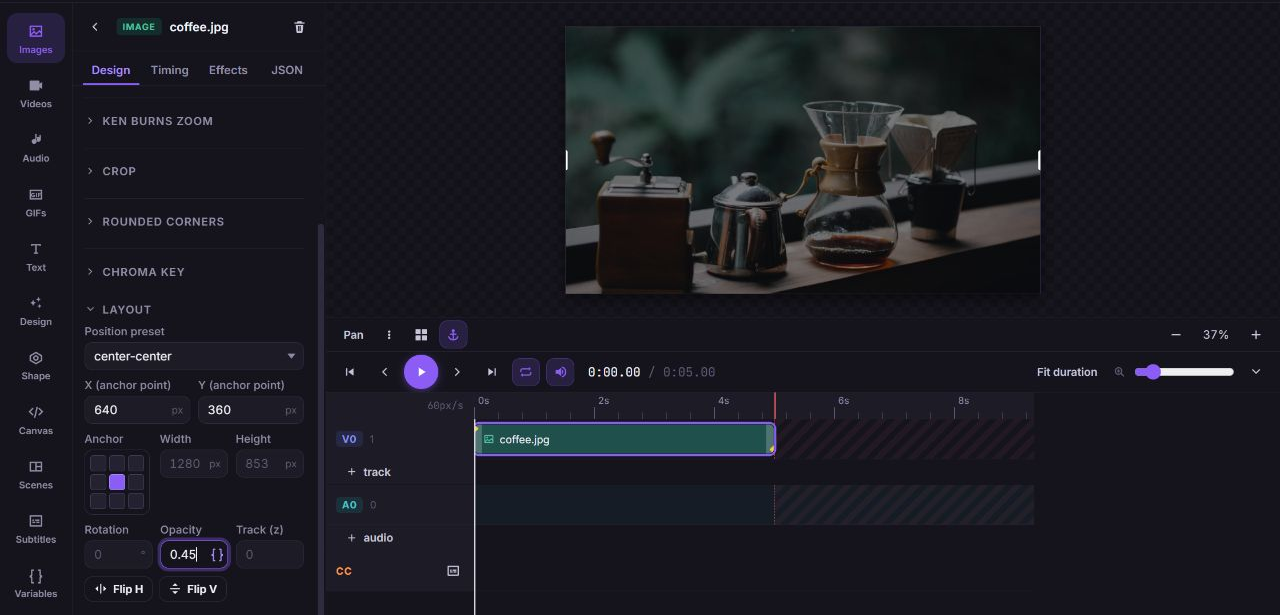
Result: A darkened photo fills the stage. If it does not appear, check the source loading state and use the recovery steps in images and GIFs.
3. Add the title above it
- Open Text, then click Add a heading.
- Click the heading on the canvas to open its text settings in the left panel.
- Replace the content with
Northstar Coffee. - Set Size to
64; keep white Color and Weight 800. - Keep the centered position. The heading sits on the next visual track, above the photo.
- In Timing, check that Appears at (enterBegin) is
0and Disappears at (exitEnd) is5. Check the photo has the same visible window.
Swipe the bottom tool strip to find Text. Tap the heading on the canvas to open its settings in the bottom Properties sheet; tap Done at its upper right when finished.
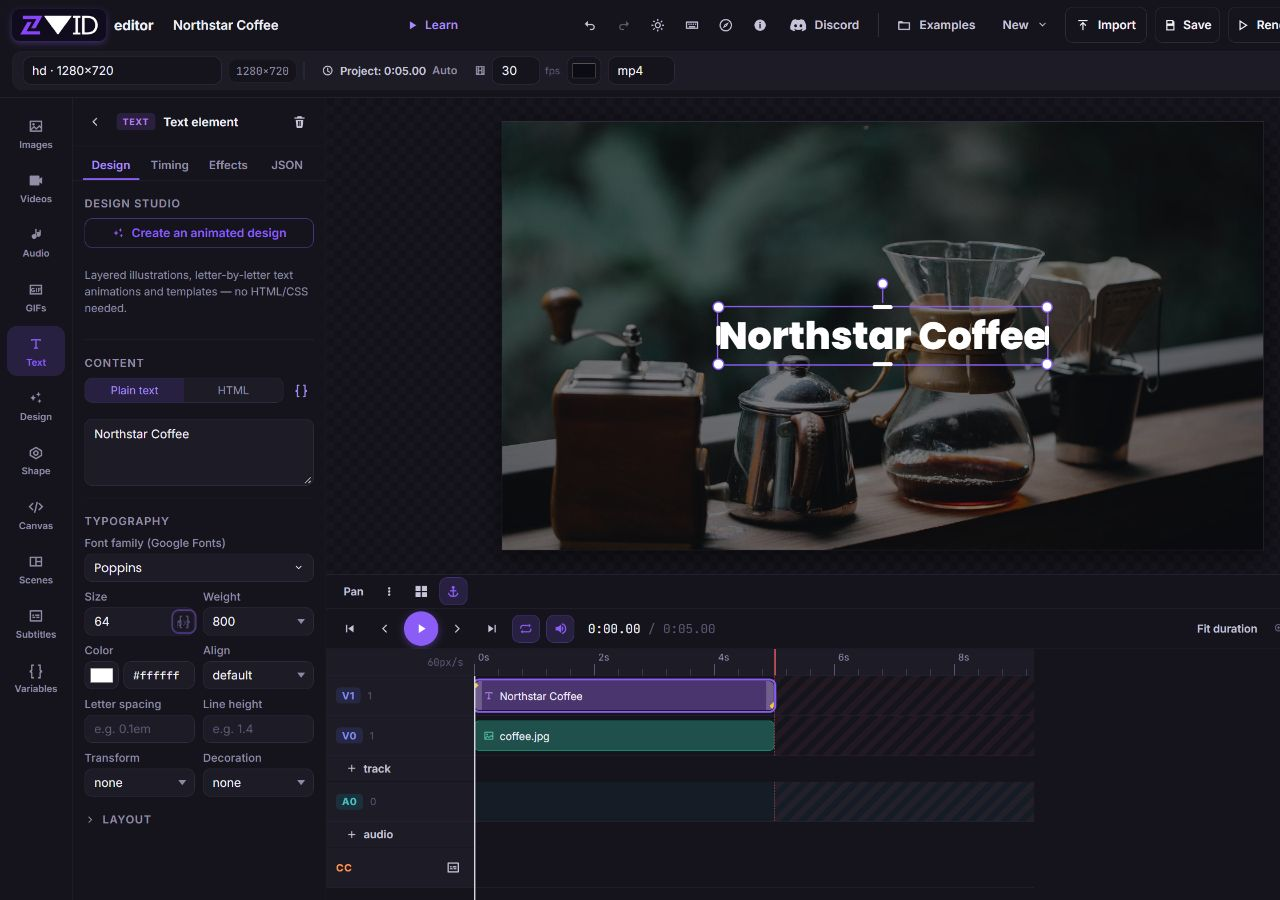
If the photo covers the text, select the heading and use the three-dot button (⋮) beside Pan to open its actions, then choose Bring forward (track +1). See canvas and positioning for layer order and alignment.
4. Preview the five-second composition
- Click the large purple circular button with a right-pointing triangle (Play) in the playback row above the timeline.
- Watch the complete composition. Both layers should remain visible for five seconds.
- Pause and scrub near the end to check the text is still present.
- If the frame is clipped by your workspace, click the zoom percentage between the minus and plus buttons at the right edge below the stage. This resets the view to fit the composition.

This example is a still title card encoded as a video; motion and audio are optional next steps. Editor playback is a preview. The downloaded render is the final output to review.
5. Keep an editable copy
- Click Save. Sign in if prompted.
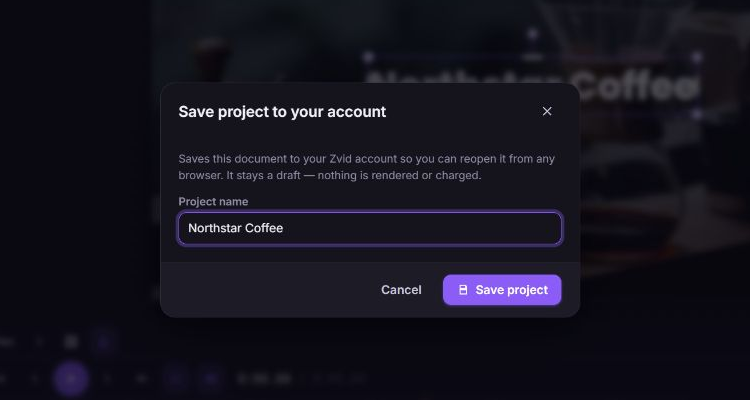
- Enter the project name in Save project to your account, then click Save project.
- Wait for confirmation before leaving. To reopen a saved draft, click the round initials avatar at the far upper right, choose My projects, then Open on that project.
The Save button is a floppy-disk icon beside Render in the top toolbar.
For a portable editable copy, choose Export → Download JSON. See projects and saving for saving, reopening, and importing compositions.
6. Render and download the MP4
- Click Render and review the output name, dimensions, duration, available credits, and any validation errors.
- The video dialog shows available credits, not a pre-submission price quote. For an account-aware estimate, export the JSON and follow validate and estimate before submitting.
- When you are ready to spend credits, click Start render once.
- Wait for completion. If the dialog closes or a request times out, check your dashboard renders before starting another job.
- Click Download and review the MP4. Download before the expiry date shown in the dialog.
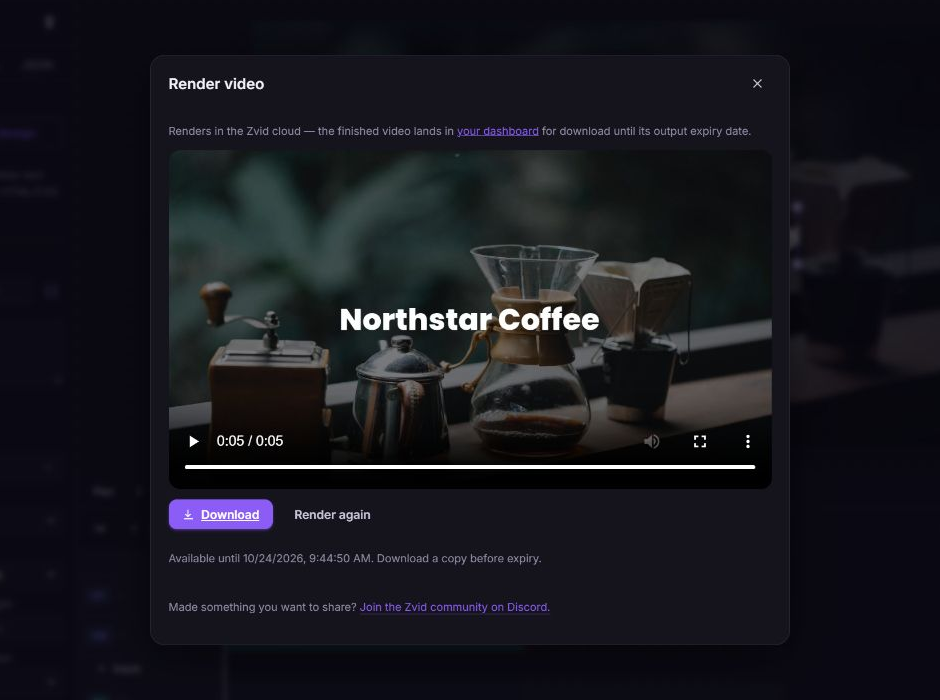
Result: A five-second, 1280×720 MP4 with the coffee photo and readable white title. Rendering creates a media file; keep your saved project or JSON for future edits.
Next steps
- Add a fade using animations.
- Add a second card using scenes.
- Make the title replaceable using variables and templates.
- Create a square still with image projects.
- Resolve missing media, saving problems, or render errors with troubleshooting.