Add and edit images and GIFs
Place still or animated images in your composition and adjust their source, size, crop, and appearance.
When to use it
Use images for product shots, logos, backgrounds, and slides. Use GIFs in video projects for short animated visuals.
How to add an image or GIF
Navigation: Editor → Images or GIFs.
- Move the playhead to the insertion point and select the scene if your video uses scenes.
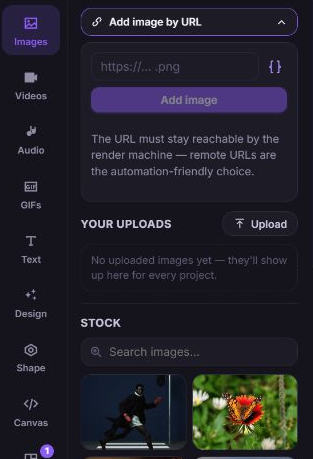
- Choose Images or GIFs, then add a URL, upload, or stock result.
- Select the new element on the stage or timeline.
- In Design → Source, check URL / path.
- Set Resize mode to contain — letterbox, fully visible to preserve the entire image, or cover — fill frame, may crop to fill the available frame.
- Use Design → Layout for exact position and dimensions.
Selecting a Resize mode fits media to the project frame and clears explicit width and height. Choose none (use width/height) and use Layout when you want independent dimensions.
How to replace an image without rebuilding its layout
- Select the image.
- Open Selected element actions, or right-click the image.
- Click Replace image….
- Choose a new source from the Images panel. Use Cancel if you want to keep the old source.
The replacement keeps the selected image's size, position, and effects. This replacement action is available for image elements; other media sources can be edited through URL / path.
How to crop or style an image
- Select the image and open Design.
- Expand Crop, turn on Enable, and set X, Y, Width, and Height for the source rectangle.
- Expand Rounded corners, turn on Enable, and enter the corner values you need.
- For a video project, open Ken Burns zoom, enable it, and adjust Depth to create a slow zoom.
- Open Effects → Color filters to adjust brightness, contrast, saturation, hue, blur, inversion, or tint.
- Preview and inspect a render when the final appearance matters.
To remove a green-screen color, use Design → Chroma key → Enable, then set Key color, Similarity (0–100), and Blend (0–100). The editor displays a badge for this effect; inspect rendered output to see the removed color.
Timing and GIF playback
In video projects, use Timing → Timeline window to set when the image appears and disappears. For a GIF, Timing → Playback → Speed controls playback speed. Image projects hide the timeline, GIF tool, and time-based settings.
What happens next
The edited asset remains a separate element that you can move, duplicate, animate, or delete. Deleting the element does not delete its source from Your uploads.