Editor troubleshooting and limitations
Start with the symptom you can see, preserve the composition, and fix the reported cause before repeating an action. Many editor problems involve the selected scene, timing, or account state rather than missing content.
Before you retry
- If the editor still contains your work, choose Export → Download JSON to keep a local copy. JSON references media; it does not bundle the source files.
- Read the notification or field error and note which action produced it.
- For an accidental local edit, click the curved left-arrow button (Undo) between Learn and Discord in the upper toolbar. For a submitted render, check its status in the dashboard before submitting again.
- Apply the recovery steps below, then repeat only the affected task.
Find Undo in the vertical three-dot menu (⋮) at the left of the second toolbar row. Export remains in the top toolbar.
Do not start a new project, import another document, clear browser storage, or delete account media as a general troubleshooting step. Those actions can replace work or remove files used by other compositions.
Find the right recovery
| Symptom | Start here |
|---|---|
| Saved work is missing, Save fails, or an import replaced the wrong project. | Saving and import recovery |
| An object, timeline, or control is missing. | Selection, visibility, and project mode |
| A source will not load, an upload fails, or a font looks wrong. | Media, uploads, and fonts |
| Playback is silent, jerky, or differs from the finished file. | Preview differences |
| A placeholder remains visible or a template cannot save. | Variables and templates |
| Render fails, progress stalls, credits are insufficient, or Download is unavailable. | Rendering and downloads |
Saving and import recovery
My latest edits are missing in another browser
Likely cause: the working document was recovered from local browser storage, but its latest changes were not saved to the account.
- Return to the browser containing the latest composition.
- Download its JSON as a backup.
- Click Save and wait for the success notification.
- In the other browser, click the round initials avatar at the far upper right, choose My projects, and reopen the saved draft.
Save is the floppy-disk icon immediately to the left of Render in the top toolbar. The account avatar remains at the far upper right.
Browser recovery belongs to that browser. Private browsing, cleared storage, or blocked/full storage can prevent recovery. It is not cloud synchronization. See Projects and saving.
Save fails or asks me to sign in
Likely cause: an expired account session, a connection failure, a missing linked project, or the account's saved-project allowance.
Preserve the current JSON first. Sign in if requested, check the error, and retry Save. If a name dialog appears because the document is no longer linked to a saved project, save it with a distinct name. Inspect My projects for the account allowance and the expected draft. Reopening another project replaces the working document, so keep the backup before doing so.
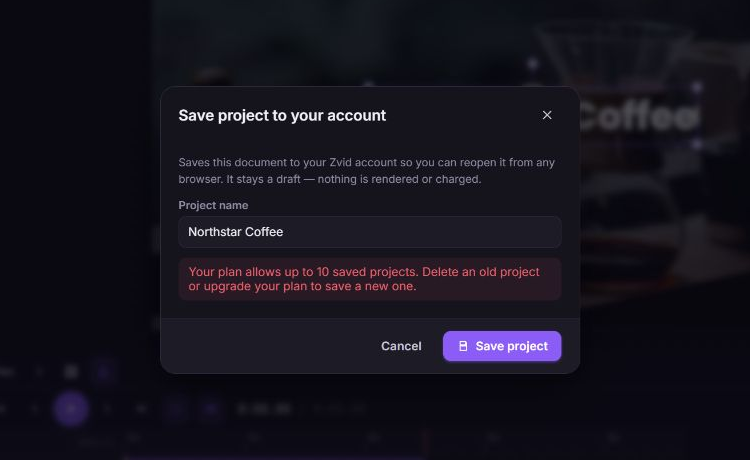
This example shows an account-specific limit. Follow the allowance displayed for your own account; Export → Download JSON preserves the composition while you resolve the saving limit.
An import replaced the wrong composition
Likely cause: Import loads a new working document and resets local editing history.
Reopen the previous cloud draft from My projects, or import a JSON backup made before the replacement. Do not rely on Undo to recover the previous document, even if the import dialog suggests that it is available. The current browser recovery copy can already contain the imported document.
Opening a JSON file imports it immediately; pasted text waits for Import project. Before importing into a linked cloud project, preserve the original. Use My projects → Save current as new when the imported composition should become a separate draft. See Import project JSON.
Imported content is incomplete or has warnings
Likely cause: the input uses fields that need normalization or contains values the editor cannot use as entered.
Read the import warning and open Export → Validation. Inspect dimensions, media URLs, scene timing, and variable defaults before rendering. A successful import is not a hosted validation result. For a parsing error, fix the JSON before applying it again; for clipboard failure, paste manually into the import text area.
Selection, visibility, and project mode
| Symptom | Likely cause | Recovery |
|---|---|---|
| The panel shows a library, not properties. | The element's properties are not open. | Click the element on the canvas to open its editing controls. |
| A title or image is absent at the playhead. | Its timing window has not started or has ended. | Select its clip, open Timing, and check Appears at and Disappears at. Scrub inside that interval. |
| A selected element is still invisible. | Another visual covers it, it is outside the frame, or opacity is zero. | Inspect Design → Layout, visual track order, or image-project Layers. |
| The object belongs to another scene. | A different scene or Global overlays is active. | Select the appropriate scene card. Use global content only when it should span the movie. |
| An element cannot be edited in full movie. | Full-movie preview is read-only. | Select its scene, or switch to overlays for global content. |
| A template item appears or disappears unexpectedly. | A condition or variable default controls it. | Inspect the condition indicator and Variables → Problems. |
| Timeline, video, audio, scenes, or subtitles are absent. | The project is an image project. | Use Layers, or preserve the current work before creating a separate video project. |
| Dragging moves the view. | Pan is enabled. | Turn off Pan at the left below the stage before dragging an element. |
| A typed shortcut changes a selected title. | Printable keys start inline editing for ordinary text. | Undo the unintended text change and use the visible action, or clear the text selection. |
For detailed controls, see workspace, positioning, timing, and shortcuts. Captions use the project timeline; inspect them through Scenes → Global overlays, rather than a scene's local timeline.
Tap an element on the canvas to open its editing controls in the bottom Properties sheet; tap Done at its upper right to return to the composition. The content tools are in a horizontally scrolling strip at the bottom.
Media, uploads, and fonts
A source says failed to load
Likely cause: the URL is unreachable, requires a login, has expired, or does not allow the browser to load the media.
- Select the media element and inspect its source URL and loading status.
- Use a direct media URL rather than a webpage URL. Check that it remains accessible without your private browser session.
- Replace the source with a reachable asset or a supported account upload.
- Preview again, then verify the finished render. Browser loading and hosted source access are separate checks.
Replacing a source preserves layout settings, so inspect crop, fit, and dimensions when the new image or clip has a different shape. See Media and uploads, images, and video.
Upload is rejected or the account is at capacity
Likely cause: the upload violates a file requirement or the account has reached its storage/upload allowance.
Read the upload error and the allowance shown by the account. Use an existing account asset or a reachable source URL while resolving the limit. Do not delete files just to test an upload: removing an account asset can break projects that still reference it. Check where the asset is used and retain a copy before deliberately removing it. See upload guidance.
Text or subtitles use the wrong font or wrapping
Likely cause: the font is still loading, unavailable, unsupported for the text's characters, or overridden by the element's custom design/code.
Check the font selection and connection, then inspect the longest text at the actual output size. For Design Studio content, use Edit design visually; ordinary typography controls may not override its generated styling. For subtitles, follow any displayed font/preview warning and use Retry if offered. Review the completed render for final line wrapping and glyph appearance. See text, Design Studio, and subtitles.
Preview differences
The stage helps you compose; the completed render is the media you deliver. Local preview does not spend rendering credits or create a download.
| Symptom | Likely cause | Recovery |
|---|---|---|
| A transition looks different after rendering. | Some browser effect previews are approximations, indicated by ≈. | Check the completed output and adjust the effect or overlap if necessary. |
| Chroma key is not removing the background on the stage. | The stage represents it with a badge. | Verify background removal in a render. |
| Filters refine after pausing. | Playback favors speed; paused previews can use a more precise frame. | Pause to inspect, then review final color and blur in the render. |
| Playback is silent. | Preview mute, zero element volume, timing, or source loading. | Check the speaker button just left of the playback time counter above the timeline, then the clip's volume, window, and source. Preview mute does not mute exported audio. |
| Captions highlight at the wrong time. | Estimated word times do not match the speech, or boundaries changed without retiming words. | Set the caption interval, use even retime if appropriate, then correct individual word times. |
| Playback is slow. | Browser decoding or a source is still loading. | Pause, let media load, and inspect a shorter interval. Check the actual output before judging delivery quality. |
| Repeating scenes show only one product. | The editing view previews one item, or variable preview is off. | Enable Variables → preview, then inspect Global overlays → full movie. |
| An image project's animated preview is moving. | The stage previews its animated content; snapshot time applies to rendering. | Inspect the rendered still at the chosen snapshot time. |
See Preview your video and image snapshot time for the relevant workflow.

Variables and templates
| Symptom | Likely cause | Recovery |
|---|---|---|
| A placeholder stays visible. | Preview is off, the variable is undefined, or a nested field is missing. | Enable preview, then resolve Variables → Problems and inspect the complete dot path. |
| A JSON default does not update. | The draft is invalid, so the last valid value remains in use. | Fix the displayed error and click format. |
| A renamed variable is missing. | Rename changed the declaration without rewriting references. | Replace the old placeholders throughout the composition or undo the rename. |
| A scene repeats zero times. | Its array is empty. | Add the intended array items and verify the repeat count before rendering. |
A condition using the text false still shows content. | A string is not the boolean value false. | Use a boolean variable and verify the on/off indicator. |
| Save as template fails. | Defaults, payload requirements, or plan limits are not satisfied. | Correct the reported field details and missing defaults, then save again. |
See Variables and render templates. Template creation does not render media, and Save as template creates a new record rather than updating an existing draft.
Rendering and downloads
Validation blocks Start render
Read each field path and message. Correct the composition, then reopen Render. Export → Validation checks local editor rules; it does not confirm hosted account limits or source access. Use Validate and estimate when you need hosted validation and a cost estimate before submission.
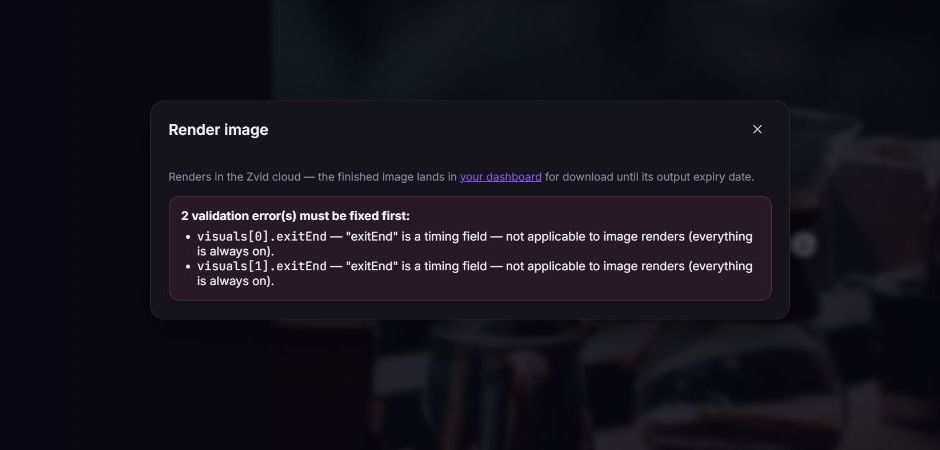
In this example, video timing fields remained in an image composition. Remove the reported fields from the imported image definition, or build the composition through New → Image project. Review the image conversion guidance before importing a converted project.
Credits are insufficient
Check the available balance and the error's required-credit amount. For video, a change to duration, dimensions, or frame rate can affect the estimate and plan limits. An image render costs one credit per output. Review the estimate before another submission and adjust the composition or account balance intentionally. The editor's pre-submission dialog displays the available balance, not a hosted cost estimate.
A connection failed or progress appears stuck
The editor displays queue/progress updates and checks accepted jobs for a terminal outcome. A lost connection or closed dialog does not mean an accepted cloud job stopped.
- Note any job identifier already available and the submission time.
- Open the dashboard and inspect the existing job's state and result.
- If it is queued or running, wait for that job. If it completed, use its output.
- If it failed, read the error and correct the cause before submitting a replacement.
Render again → Start render creates another job and can spend credits again. Avoid duplicate submissions merely to restore a progress display. See render status and errors.
Download is unavailable or the output expired
The output may not be ready, may have no usable result URL, or may have expired. Check the completed job and its availability message in the dashboard. Download finished media before its expiry date. If it expired and you have no downloaded copy, create a new render from the saved project; that is a new paid job.
Saving a project or downloading JSON preserves the composition, not the finished file. Keep both when handing off a campaign. See Render, download, and export.
Frequently asked questions
Does Save download my video?
No. Save keeps an editable account draft. Render creates finished media; Download saves that completed output. Export → Download JSON saves the editable composition as a local file.
Can I edit without an account?
Yes. Local composition editing and JSON import/export are available without signing in. Cloud saving, account uploads, saved designs, and rendering require an account.
Can Undo restore a deleted account file?
No. Undo is for local composition edits. It does not restore deleted uploads, cloud drafts, or saved design-library entries, and it does not recover the prior document after an import.
Does importing captions generate a transcript?
No. Import reads caption text and timing you already have. Estimated word timing distributes the words across their caption interval; it does not recognize speech.
Can I fix everything by editing JSON?
The selected element's JSON tab exposes additional fields, but the result still needs valid values, reachable sources, and supported hosted behavior. Apply one small change at a time and keep a backup before importing a whole project.
Contact Zvid with useful details
Click the i-in-a-circle button in the upper toolbar between the compass button and Discord, then Chat with support, or visit https://zvid.io/contact. Include the action you tried, the exact error, the project type, browser, approximate time, and project/render identifier when available. A screenshot or sanitized JSON example can help reproduce a layout problem. Do not include API keys, passwords, or private media you do not intend to share.
Open the top toolbar's vertical three-dot button (⋮), then Help → Chat with support.