Variables and render templates
Turn a composition into a reusable template by replacing changing content with variables.
When to use it
Use a template when the layout stays the same but each output needs different text, images, products, or scene selections. A variable has a name and default value; a placeholder inserts that value into the composition.
How to define and use a variable
Navigation: Editor → Variables.
- Enter a name in variableName.
- Choose string, number, boolean, array, or object, then click Add.
- Enter a realistic default value. For arrays and objects, enter valid JSON and use format to format and apply it.
- Click the variable's placeholder to copy it.
- Paste it into a supported field, or use that field's variable insertion menu.
- Enable preview in Template variables to show the resolved value on the stage.
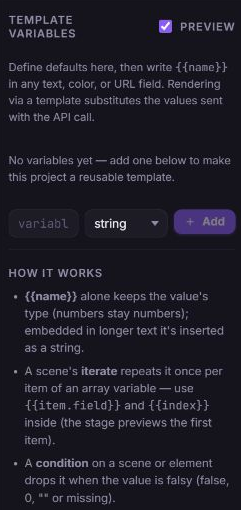
For example, define a string named title and insert {{title}} into text. Object values can use dot paths such as {{product.name}}. A placeholder used alone can retain its value type; a placeholder inside a longer sentence becomes text.
Preview variable values
Enable preview in Variables to inspect the composition with its current defaults. The project keeps the raw placeholders when preview is enabled. Replacing a bound field with a literal value removes that field's placeholder.
How to rename or delete variables
- In Variables, inspect the usage count beside the variable.
- Click Rename, enter the new name, and press Enter.
- Update any placeholders that still use the previous name. Renaming the declaration does not automatically rewrite those references.
- To remove a variable, click Delete variable. If it is still referenced, click again to confirm.
Deleting a referenced variable leaves unresolved placeholders until you remove or replace them. Review Problems after either action. For an undefined variable, click define and supply a safe default.
How to repeat a scene for each array item
- Add an array variable containing the items to render.
- Open Scenes and select the scene to repeat.
- In Scene settings → Repeat for each item (iterate), select the array variable.
- Set Item alias if you want a name other than item.
- Use placeholders such as
{{item.title}}for an item's fields and{{index}}for its position. - Review the repeat count on the scene card, then preview the full movie.
The scene editing view previews the first array item. The full-movie preview expands the sequence using current defaults.
How to show or hide content conditionally
- Define a boolean variable with a safe default.
- For a scene, open Scenes → Scene settings → Condition.
- For a visual element in a video project, open Timing → Template → Condition. In an image project, the Template section is under Design.
- Insert the variable placeholder.
- Check the on, off, or ? state indicator and resolve any missing variable.
A condition resolving to false, zero, or an empty value removes that content from the render. Editing views can keep conditionally hidden content selectable; use full-movie preview to inspect the resolved sequence.
How to save a render template
Navigation: Editor → account menu → Save as template.
- Sign in and finish defining defaults for every placeholder.
- Click your account avatar, then Save as template.
- In Save as render template, enter Template name and an optional Description.
- Review the variable summary and resolve any missing-default warning.
- Click Save template.
- Copy the displayed template identifier, or follow your dashboard to manage it. Click Done to close the dialog.
The editor's Save as template creates a new template record. It is separate from Save, which updates a linked project draft. Saving a template validates the composition against your plan; saving a draft does not make it render-ready.
Troubleshooting
A placeholder is rejected or the template will not save
Cause: A referenced variable is missing, an expression is unsupported, JSON is invalid, or the composition fails a plan or payload check.
Solution: Open Variables → Problems, define missing defaults, and fix invalid JSON or references. Use simple names or dot paths rather than arbitrary expressions. Retry Save template and use the field details shown in its error message to correct remaining issues.
What happens next
Use the template identifier with the API or integrations and supply per-render variable values. Creating the template does not render a video. A local preview shows values on the stage; the API's free template preview returns resolved JSON.