Create image projects
Build a still composition from images, text, shapes, and designs, then render it as PNG, JPG, or WebP. Use image projects for product cards, social graphics, covers, and reusable image templates.
Before you begin
Save or export the composition currently open before choosing New. A new image project starts an empty composition rather than converting the current video.
You can arrange a design before signing in. Account uploads, cloud saving, and hosted rendering require sign-in. Each hosted image render costs 1 credit, including another render after a revision. Preparing the composition and opening the render dialog do not submit it.
How to create an image project
- Click New in the upper toolbar, then choose Image project.
- Enter a descriptive Project name, such as Northstar Coffee Card.
- Choose the intended resolution from the preset selector at the left of the second toolbar row. A new image project starts at instagram-post · 1080×1080, with a white background and png output.
- Click the background-color swatch immediately before the output-format selector, or keep white while arranging the composition.
- Add an image from Images, then add a heading from Text. Use Shape or Design if you need additional graphics.
- Click each visual on the canvas to open its Design properties and Layout.
Tap the vertical three-dot button (⋮) at the left of the second toolbar row, then New → Image project. The gear beside that button opens Project settings for the resolution and background. Content tools are in the horizontally scrolling strip at the bottom. To undo a composition edit, open the same three-dot menu and choose Undo.
Result: The toolbar shows IMAGE, and Layers replaces the video's structural timeline. There are no video duration or frame-rate controls. Click the curved left-arrow button (Undo) immediately after Learn in the upper toolbar to reverse a composition edit, and Save when the design is ready.
How to arrange and replace layers
- Open Layers in the tool rail.
- Click a row to select the element. The top of the list is the front of the image.
- Drag the dotted grip at the far left of a layer row to reorder it. Selecting a row reveals action buttons on its right: the up chevron is Bring forward, and the down chevron is Send backward.
- For an image layer, click the landscape-picture button after the two chevrons. Its tooltip is Replace image (keeps size, position and effects). Select a new source from Images.
- The overlapping-squares button immediately before the trash icon is Duplicate; the trash-can button at the far right is Delete layer. Use Undo if a change was accidental.
Open Layers from the horizontally scrolling bottom tool strip. The bottom sheet shows the same row grip and action icons after you select a layer. Tap Done at its upper right to return to the canvas. To edit a visible element, tap it on the canvas; its settings open in the bottom Properties sheet.
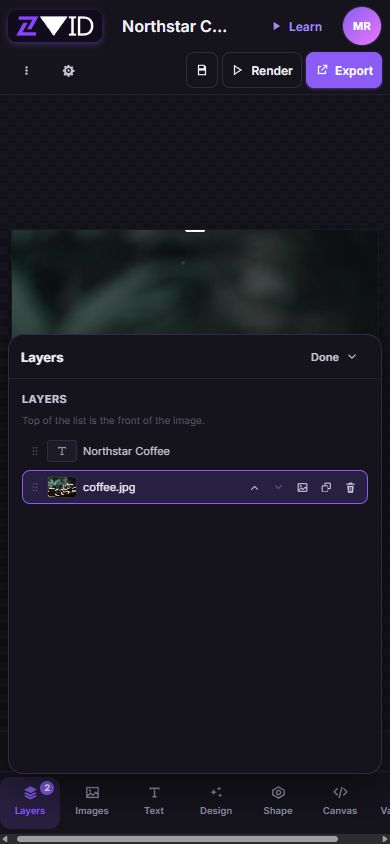
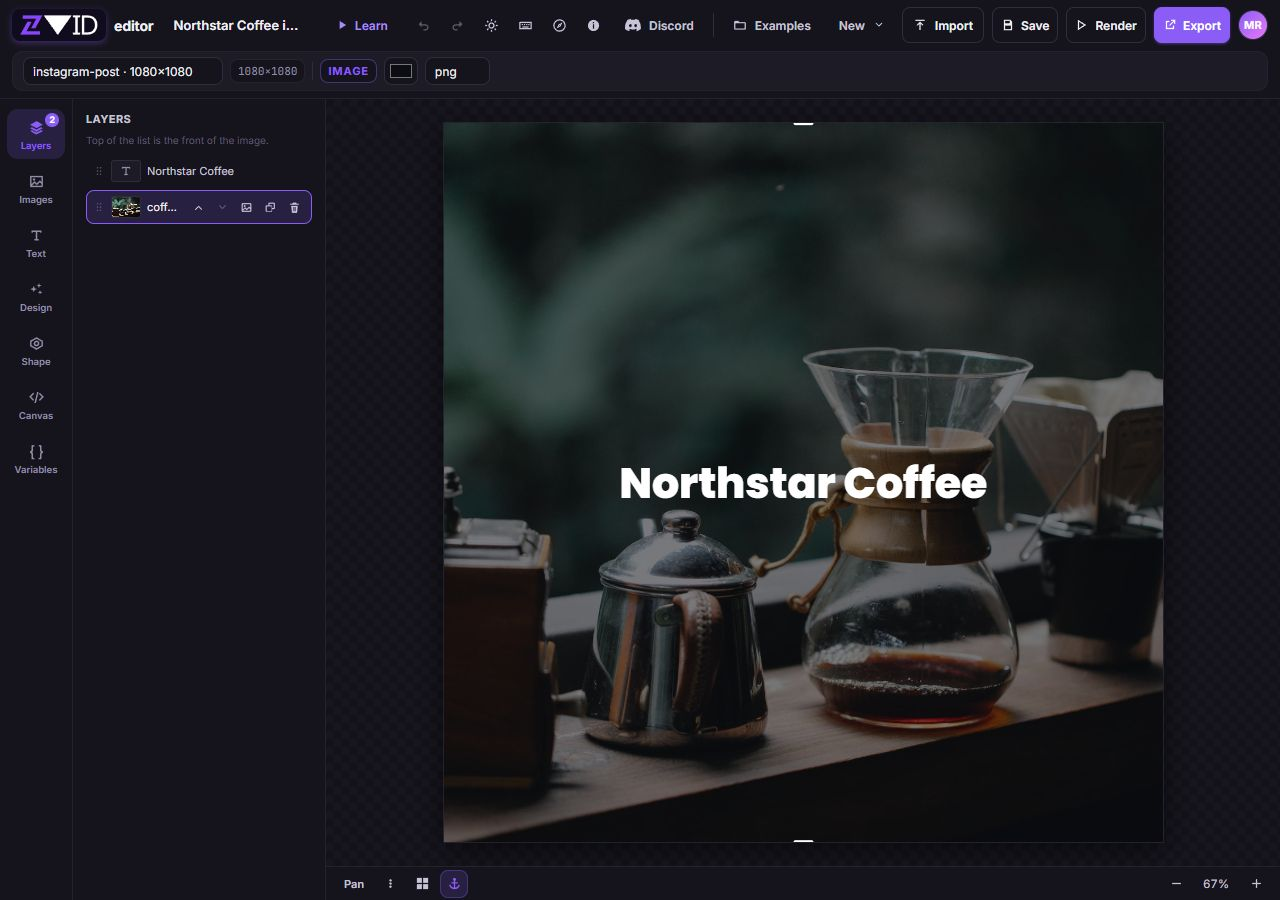
Click a visual on the canvas to open its editing controls. For a layer hidden behind another element, double-click its row in Layers to open its properties.
The top layer appears in front. This two-layer example keeps the white heading visible over a darkened photo.
Replacing an image preserves its layout and effects, including the crop. Inspect the new source when its dimensions differ. Deleting a layer removes that use from the composition; it does not delete a file from Your uploads.
What changes in image mode
| Area | Image-project behavior |
|---|---|
| Media tools | Add still images; Videos, Audio, and GIFs are hidden |
| Structure | Use Layers; there is no timeline or scene sequence |
| Text and graphics | Text, SVG shapes, and Design Studio compositions remain editable |
| Element timing | Elements are part of the still composition; the Timing tab is hidden |
| Effects | Supported appearance controls remain; video enter/exit animation controls are hidden |
| Variables | Use defaults and template bindings for reusable image compositions |
| Export | Export → Download JSON saves the editable project definition |
| Render | Render image creates the finished image file |
Image mode is not a video-frame extraction tool. For advanced JSON conversion, see Converting a video composition; merely changing the filename extension does not create a valid image project.
How to capture an animated design as a still
Some designs and canvas presets contain animation code even though the final output is a still image.
- Add the animated design or preset to the image project.
- Open Layers, then click uncovered background inside the output frame to open the PROJECT inspector. Clicking the checkerboard outside the frame does not open it; clicking a visual selects that visual.
- Find Snapshot time → Capture at (seconds). This section appears only when at least one visual has custom animation CSS, JavaScript, or an animation duration.
- Keep the field unset for the settled animation state, or enter a nonnegative time, such as
0.5, to capture a chosen moment of supported animated content. - Render and inspect the downloaded image before reusing the setting in a template.
Open Layers from the bottom tool strip, then tap uncovered background inside the output frame above the sheet. The bottom Properties sheet changes to PROJECT. Snapshot time is below Overview; scroll the sheet if needed, then tap Done at its upper right when finished.
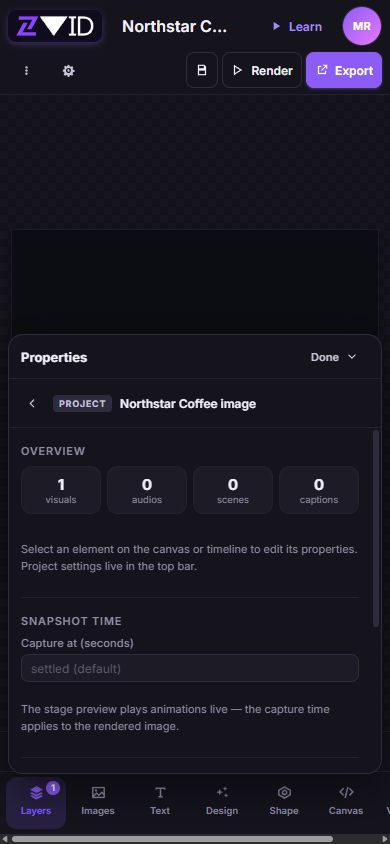
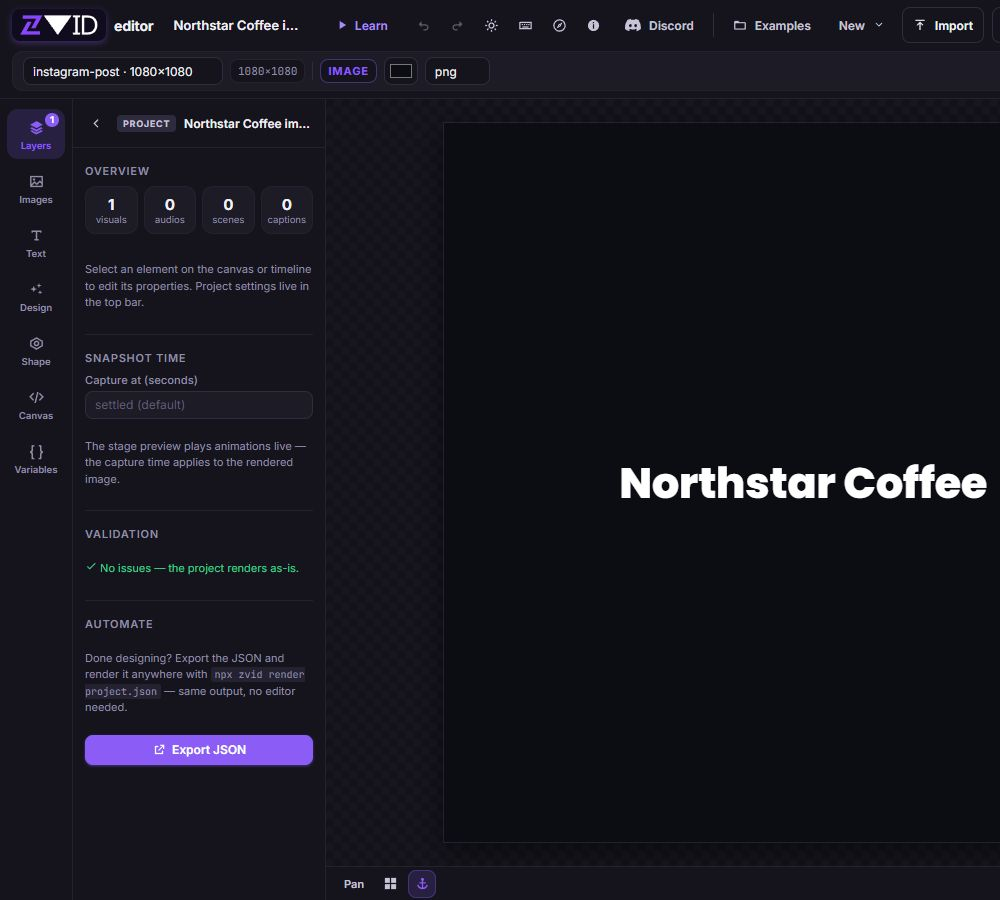
The background-click route needs an uncovered part of the output frame. Set snapshot time while that background is accessible. A full-frame visual blocks the route, and Escape returns to the library instead of opening PROJECT.
Use Undo to reverse an unwanted snapshot-time change. The stage plays its animation preview live; setting Capture at does not freeze the stage at that time. The setting applies to the rendered image. Static images and text do not gain motion from this field, and it does not enable video or GIF sources in image mode.
How to render PNG, JPG, or WebP
- Click Render. Sign in if prompted and address any validation errors shown.
- In Render image, choose Format.
- For JPG or WebP, choose Quality. The control starts at
90and supports1–100; PNG is lossless and disables it. - For PNG or WebP, enable Transparent background if you want the canvas background to be transparent. JPG does not support transparency.
- Check the output filename, dimensions, and available credit balance. Start render spends 1 credit for one image.
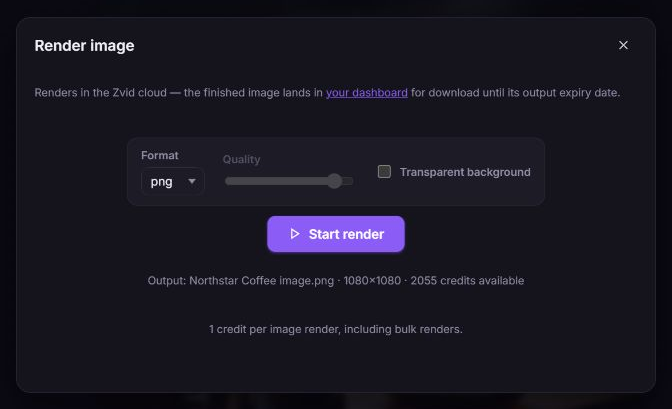
- Click Start render once and wait through the queue and rendering states.
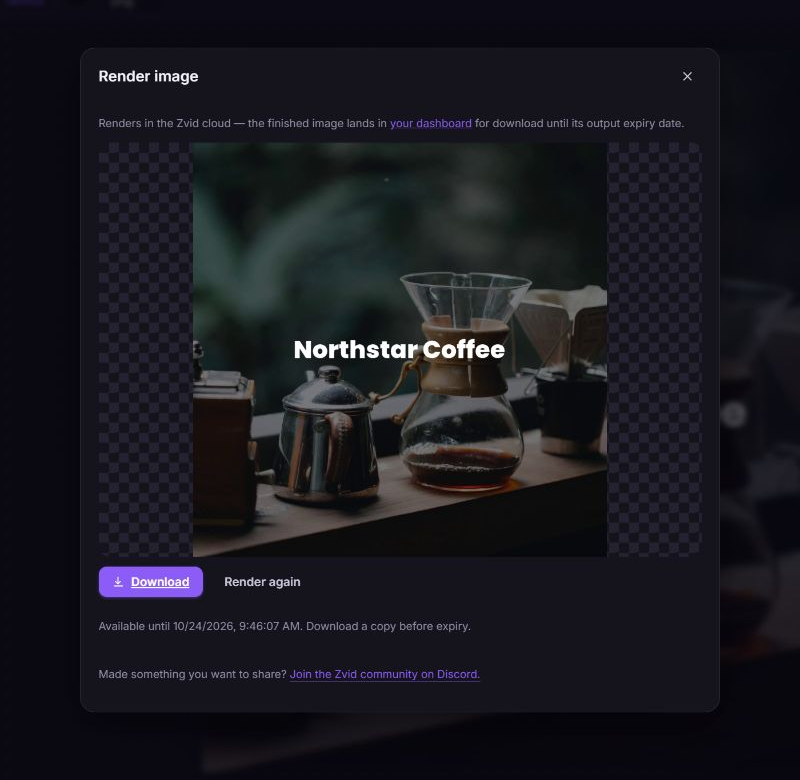
- Inspect the completed image, then click Download. Open the downloaded file and check its dimensions, framing, typography, and background.
- Save the editable project separately. Download a copy of the finished image before the output expiry date shown by Zvid.
| Format | Quality control | Transparent background |
|---|---|---|
| png | Disabled; lossless | Available |
| jpg | 1–100 | Unavailable |
| webp | 1–100 | Available |
Use Format inside the render dialog when switching an image that already has quality or transparency configured. It clears options the new format cannot use. A transparent canvas background does not remove opaque pixels from an uploaded photo or from a full-frame design layer.
Example: a square Northstar Coffee card
- Create Northstar Coffee image as an Image project and keep instagram-post · 1080×1080. Set Background color to
#0b0d12. - Add the supplied Northstar Coffee photo from Images → Add image by URL. Uploading a replacement photograph is optional.
- Choose cover, use center-center positioning, and set Opacity to
0.45to darken the full-frame photo against the background. - Add a Northstar Coffee heading at center-center, with white text, a
64px font size, and font weight800. - Open Layers and keep the heading above the photo. Inspect the square frame and confirm the text remains readable.
- Save the editable project and download its JSON for a portable copy. Render a PNG with Transparent background off for a complete square card.
- Open the downloaded PNG and check the text at its intended display size. After this first version, an optional second heading such as Freshly roasted can extend the design.
Troubleshooting
| Symptom | Likely cause | Recovery |
|---|---|---|
| The timeline, audio, or scene tools are missing | The current project is an image | Use Layers for the still; start a separate video project if you need motion and audio |
| Text is hidden behind the photo | The photo is in front of the text | Move the text toward the top of Layers |
| The PNG has no Quality setting | PNG uses lossless encoding | Keep PNG, or select JPG/WebP when adjustable compression is needed |
| Transparency is unavailable | JPG is selected | Choose PNG or WebP in Render → Format |
| The output still has an opaque background | A visual layer covers the transparent canvas | Inspect full-frame images, shapes, and designs; transparency does not erase their pixels |
| Snapshot time has no effect on the stage | The control applies to rendering | Inspect the completed image; use a static design if no animated state is needed |
| The image render fails | A source, field, or account requirement failed validation | Read the render error before retrying and follow render troubleshooting |