Dashboard overview
The Zvid Dashboard is where you manage saved designs, rendered media, automation, and your account.
When to use it
Use the dashboard to return to a design, find a finished video or image, create personalized outputs from templates, or manage credits and developer access. The visual editor opens separately and uses the same Zvid account.
Three concepts help you choose where to start:
| Concept | What it contains | Where to find it |
|---|---|---|
| Project | A saved, editable design made of scenes and elements. A scene is a timed section of a video; elements include text, images, and audio. | Projects |
| Render | A job that turns a design into a finished video or image. Rendering uses credits. | Renders |
| Template | A reusable design with variables, such as a product name or image URL, that you can replace for each output. | Templates |
Saving a project and rendering it are separate actions. Save the design to continue editing later; render it to produce downloadable media.
Find your way around
Open app.zvid.io and sign in. Use the left sidebar to choose a page. On a small screen, select Open sidebar in the top bar; select Close sidebar to dismiss it.
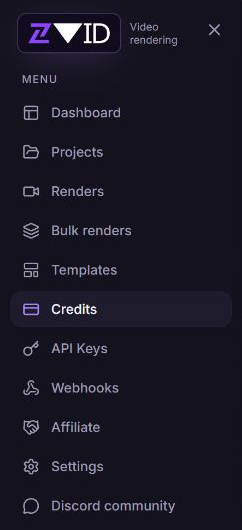
| Sidebar label | What you can do |
|---|---|
| Dashboard | Review your balance and recent render activity. |
| Projects | Open, rename, and delete saved drafts. |
| Renders | Find, view, download, rename, and delete rendered outputs. |
| Bulk renders | Create and monitor batches from template data. |
| Templates | Create, edit, preview, duplicate, and archive reusable designs. |
| Credits | Check balances, spending, and transactions. |
| API Keys | Create and manage credentials for API access. |
| Webhooks | Configure notifications sent to your application. |
| Affiliate | Open your affiliate account area. |
| Settings | Open account settings. |
| Discord community | Open the Zvid community in another tab. |
The top bar also contains Create video, Create image on wider screens, your profile menu, and the light/dark theme control. Toggle color theme switches the dashboard appearance.
The top-bar Search projects… field currently opens Projects, but does not narrow the saved-project list. Open the project you need from the list. The search field on Renders separately filters renders by name or resolution.
Create your first video
Navigation: Dashboard → Create video
- Select Create video in the top bar. The visual editor opens in a new tab.
- Follow the editor overview to add scenes and content.
- Save your project so you can return to the editable design from Projects.
- Follow Rendering & Export to produce the finished video. Review the rendering cost and your available credits before submitting.
- Return to the dashboard and select Renders. Wait for the card to show Ready, then use Download.
To create a still image, select Create image, or open Renders → New image. Saving a draft does not itself produce a downloadable image or video.
Read the dashboard home
Navigation: Dashboard
- Credits shows your available balance, split into subscription and one-time credits, and credits used in the last 30 days. Select the card to open Credits.
- Videos shows recent render counts, including completed and failed jobs. Select it to open Renders.
- Processing shows jobs in the recent list that are waiting or rendering.
- Recent activity shows up to six recent jobs with status, name, resolution, duration, credit amount, and date. Select View all → to open the render library.
- Manage API keys opens API Keys; Read the docs opens the documentation.
The render totals are a snapshot of the most recent 50 jobs loaded by the page. Use Credits for the documented usage views; do not treat the home render count as an account-wide report or a guaranteed 30-day total.
The sidebar credit panel also shows the available total and its two balances. View usage → opens Credits; Upgrade plan opens Subscription.
Open your subscription or sign out
Navigation: Top bar → Open profile menu
- Select your avatar or name in the top bar.
- Select Subscription to manage your plan, or Logout to sign out and return to the sign-in page.
For subscription tasks, see Credits and billing.
Use the community invitation
Select Join Discord in the home-page invitation to open the community. Select Dismiss community invitation to hide the invitation in this browser. The Discord community sidebar link remains available.
For customer support, visit https://zvid.io/contact.
What happens next
Your saved design is available in Projects. Each submitted output has its own job in Renders. Reusable templates and bulk batches appear in their respective sections.