Preview your video
Play your composition in the editor to check timing, content, and layout before spending credits on a render.
When to use it
Preview after editing text, moving clips, changing audio, or reordering scenes. Editor playback is a browser preview; rendering creates the final downloadable media.
How to preview the current timeline
Navigation: Editor → timeline playback controls.
- Click the time ruler where you want playback to begin.
- Click Play (Space), or press Space outside an input field.
- Click Pause (Space) to stop.
- Use Previous frame and Next frame to inspect an exact moment.
- Use Previous start point (Home) and Next start point (End) to jump between content starts.
- Toggle Loop (L) for repeated playback and Mute (M) to mute the preview.
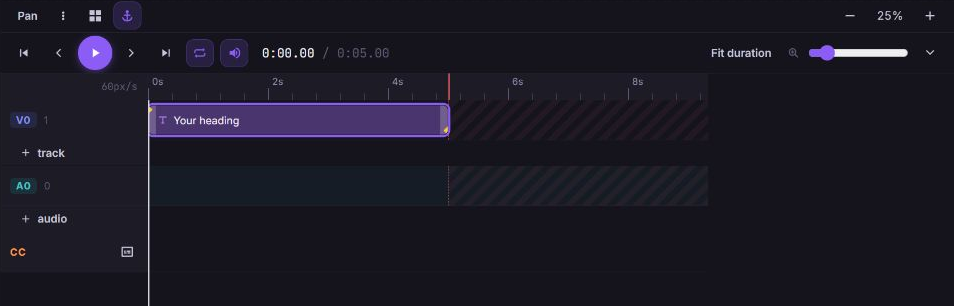
Dragging the ruler scrubs through time. Preview mute does not change the video's exported audio; edit the element's Volume to change the output.
How to preview all scenes
- Open Scenes → Global overlays.
- Above the timeline, select full movie.
- Click Play (Space) and inspect transitions between scenes.
- To edit a scene, select its scene card. To edit global content, switch back to overlays.
full movie is read-only. The preview resolves repeated scenes and conditions using the current variable defaults; a single-scene editing view previews the first item of a repeating scene.
How to check template content
- Open Variables and set realistic default values.
- Enable preview to show resolved values on the stage.
- Check text length, image sources, conditional content, and scene count.
- Use full movie when the project contains repeated or conditional scenes.
Local variable preview is separate from the API's template preview, which returns resolved JSON rather than a rendered video.
Troubleshooting
I cannot select an element in the full movie
Cause: full movie mode is read-only.
Solution: Select the scene containing the element, or switch to overlays to edit global elements.
The preview differs from the rendered video
Cause: The browser stage approximates some rendering effects and depends on available fonts and browser media playback.
Solution: Inspect the completed cloud render for final output. Effects marked ≈ are approximations, and chroma key is shown as a badge rather than removing the color on the stage. Check font loading and media access if content is missing.
What happens next
When timing and content look right, save the project and start a render. Previewing locally does not produce a download or consume rendering credits.