Find your way around the editor
Use the workspace to add content, select what you want to change, and inspect the result on the stage. Open the Zvid editor to follow along.
Before you begin
Have a video or image project open. You can explore the tools and edit locally without signing in. Sign in for cloud saving, account uploads, saved designs, and rendering. Save or export your current project before loading an example or starting another composition.
Workspace map
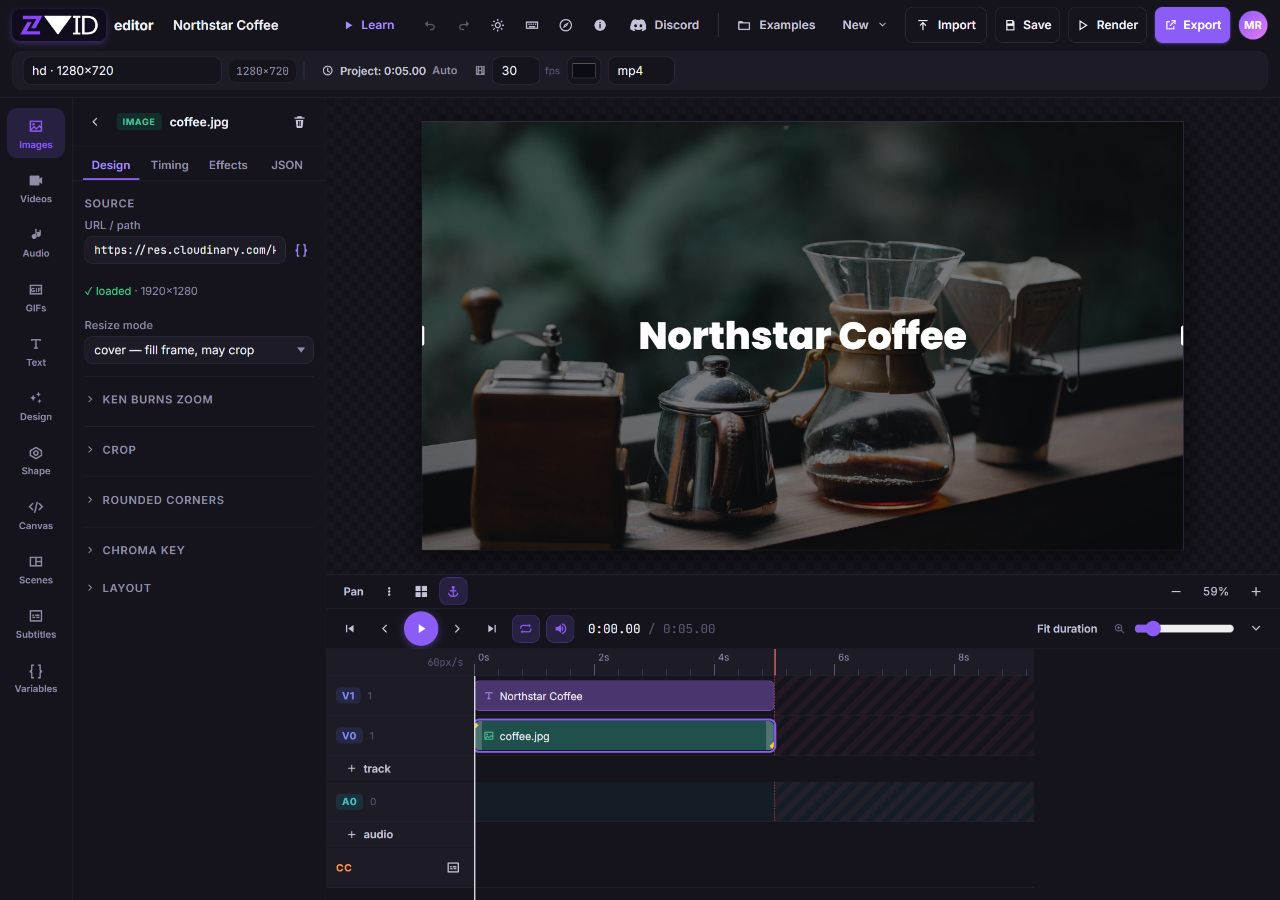
| Area | What it does | Next guide |
|---|---|---|
| Top bar | Names the project and provides project settings, editing actions, Save, Render, and Export. | Project settings |
| Tool rail | Opens media, text, design, shape, scene, subtitle, and variable tools. | Add content |
| Shared tool panel | Shows the chosen library or the selected item's properties. | Selection and properties |
| Stage | Displays the composition; select, move, resize, and rotate visual elements here. | Canvas and positioning |
| Timeline | Arranges a video's visual and audio clips over time and provides playback controls. | Timeline and timing |
| Account menu | The round initials avatar at the far upper right opens My projects, Save as template, Open dashboard, community, and sign-out actions. | Projects and templates |
The stage is the main composition preview. The tool named Canvas in the rail is a library of code-driven graphic presets; it does not open project dimensions or stage positioning controls.
On desktop, New, Import, Save, Render, and Export are labeled buttons in the upper toolbar. The second row contains the resolution preset, dimensions, Project: duration control, fps, background-color swatch, and output format. There is no desktop Project settings gear or More editor actions button.
The small buttons between Learn and Discord have these visible symbols:
| Symbol | Action |
|---|---|
| Curved arrow pointing left | Undo |
| Curved arrow pointing right | Redo |
| Sun | Change the theme |
| Keyboard | Keyboard shortcuts |
| Compass inside a circle | Product tour |
| i inside a circle | Help |

Switch between a library and properties
- Click an image, text element, or other visual on the canvas to open its settings in the left panel.
- Use the inspector tabs to make the change you need.
- To browse content again, click the left-pointing chevron at the top-left of the inspector, beside the element's type and name (Back to library). The trash-can button at the opposite end of that header deletes the selected element.
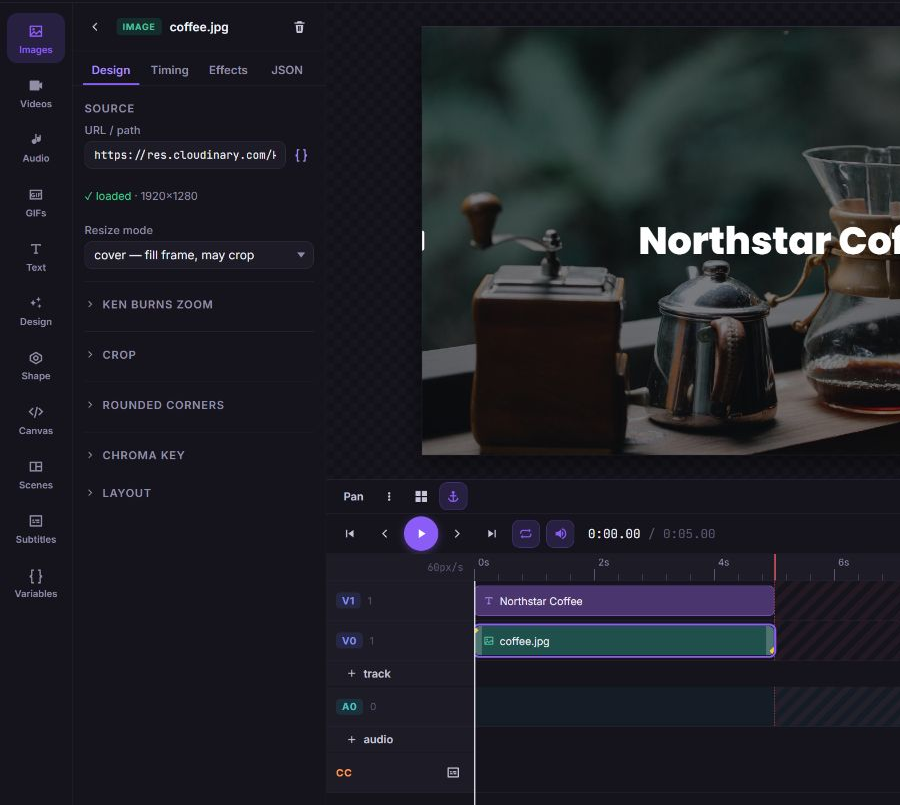
Tap an element on the canvas to open its editing controls in the bottom Properties sheet. Tap Done at its upper right to return to the canvas. The back chevron and trash-can button remain at opposite ends of the element header.
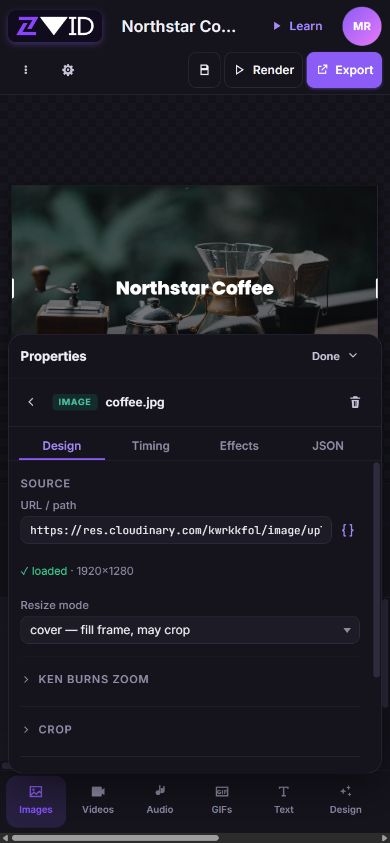
Expected result: the panel changes from content choices to settings for the selected item. The label at the top identifies the type, such as Text element, SVG graphic, or AUDIO. The stage and timeline still show the same project.
With a tool panel open, click uncovered background inside the output frame to open PROJECT properties. The checkerboard outside the frame does not open them, and a visual covering the full frame blocks this route. Escape returns to the library instead. Project properties affect the whole composition; select an element again to return to its properties. Audio and scenes have dedicated settings; selecting a caption takes you to the Subtitles panel.
Open Text for a video or Layers for an image, then tap uncovered output-frame background above the sheet. The bottom Properties sheet changes to PROJECT. Tap Done at the upper right to close it. See project settings for the thumbnail controls and image projects for snapshot time.
Visual element inspector
| Tab | Use it for | Availability |
|---|---|---|
| Design | Content, source media, typography, size, position, rotation, and other layout settings. | Visual elements; controls depend on the selected type. Image-project template conditions also live here. |
| Timing | Visible interval, animation boundaries, video source trim, and template conditions. | Video projects only. |
| Effects | Enter/exit effects, video transitions, color filters, or custom animation code. | Contents depend on the element and project type. Image projects omit timed enter/exit effects. |
| JSON | The selected element's raw configuration, including fields without a dedicated control. | Visual elements; use Apply to validate and commit the edit, or Revert to discard the uncommitted text. |
Dialogs such as Design Studio require Insert element or Update element. The JSON tab has its own Apply action. Use project Undo for an applied local composition change; Revert in the JSON tab only discards that tab's pending edit.
Choose a tool
| Tool | What to add or manage |
|---|---|
| Images, Videos, Audio, GIFs | Use uploads, a source URL, or the stock choices supported by that media type. See media and uploads and Zvid's stock library. |
| Text | Insert a heading, subheading, body text, or caption-sized text element. See text. |
| Design | Build layered graphics in Design Studio or reuse Your designs. See Design Studio. |
| Shape | Add shapes, icons, or SVG graphics. See shapes and SVG. |
| Canvas | Insert animated full-frame code presets; advanced edits are under Effects → Animation code (customCode). See custom motion. |
| Scenes | Organize local timelines and access Global overlays. See scenes. |
| Subtitles | Import captions, edit word timings, and style the subtitle track. See subtitles. |
| Variables | Define defaults, bind changing content, and preview template values. See variables and templates. |
| Layers | Select and reorder static image-project elements. See image projects. |
Click an open tool again to collapse its panel. Some libraries load more choices as you scroll. If a library shows an error, use its Retry action where available before inserting another item.
Work on a compact screen
The tool rail becomes a horizontally scrolling strip at the bottom. Swipe sideways to reach more tools, then tap the tool you need. Tap Done at the upper right of an open panel to return to the stage.
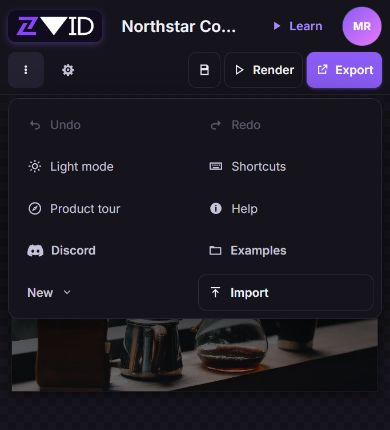
Secondary project actions move to the vertical three-dot button (⋮) at the left of the second toolbar row. This is More editor actions; it contains Undo, Redo, theme, Shortcuts, Product tour, Help, Discord, Examples, New, and Import. The adjacent gear opens Project settings. Save remains beside Render, shown as a floppy-disk icon.
Video and image workspaces
A video project has a timeline, frame rate, duration, video/audio/GIF tools, scenes, and subtitles. An image project shows Layers, hides those time-based tools, and has no Timing tab or playback timeline. Image output formats are png, jpg, and webp. A changing toolbar can therefore indicate a different project type, rather than a missing feature.
Use New → Video project or New → Image project to start the intended type. New replaces the working document; save or download its JSON first. Follow the first-video quickstart or image-project guide for the complete workflow.
To fit the composition in the stage, click the zoom percentage between the minus and plus buttons at the right edge below the canvas. These controls change your view, not the output resolution or element position. For exact placement, use numeric Design → Layout controls.
Learn, take the tour, or get help
Watch the editor tutorial
- Click Learn in the upper toolbar to show Learn the editor.
- Select Watch tutorial to play Build a Product Hero.
- Use Jump to a topic to start a chapter, such as scenes, music, variables, or saving and rendering.
- Close the dialog to return to the project. The composition stays open while you watch.
If embedded playback does not load, choose Watch on YouTube. The tutorial also offers Read the docs. Watching a tutorial does not create or render a project for you.
Replay the product tour
Click the compass-in-a-circle button in the upper toolbar, between the keyboard and i buttons, to open Product tour.
Use Next and Back to move between the highlighted workspace areas. Skip tour or Escape closes the tour; Start editing finishes the last step. Right/left arrow keys move between steps. The tour skips the timeline step in image projects and can be replayed from Product tour.
Open the vertical three-dot button (⋮) at the left of the second toolbar row, then Product tour.
Find shortcuts and support
Click the keyboard-symbol button in the upper toolbar, between the sun and compass buttons, for Keyboard shortcuts. To use ?, leave input fields and clear any editable text selection first; printable keys can start typing into selected text. Shortcuts that edit the composition do not override normal typing inside a text field. See the shortcut guide for platform-specific keys and selection behavior.
Click the i-in-a-circle button between the compass and Discord buttons, then Chat with support, for in-editor support. If chat cannot open, the Help dialog reports it and retains the contact link. Contact Zvid at https://zvid.io/contact.
Open the top toolbar's vertical three-dot button (⋮), then choose Shortcuts or Help.
Troubleshooting
| Symptom | Likely cause | Remedy |
|---|---|---|
| The panel shows a library instead of settings. | The element's properties are not open. | Click the element on the canvas to open its settings. |
| The properties affect the whole project. | No element is selected. | Select the intended visual and check the inspector's type label. |
| Videos, Audio, Scenes, or the timeline are missing. | The project is an image project. | Use the image tools, or save this work before starting a video project. |
| Dragging moves the view instead of the element. | Pan is enabled. | Turn off Pan at the left below the stage before selecting and dragging. |
| JSON edits do not appear on the stage. | They have not been applied or fail validation. | Click Apply and correct the displayed error; use Revert to discard the pending edit. |