Editor keyboard shortcuts
Use shortcuts to move through the timeline and edit a composition without repeatedly opening menus.
How to open the shortcut reference
Navigation: Editor → Keyboard shortcuts (?); on compact screens, More editor actions → Shortcuts.
- Click the keyboard icon or press ? outside a text field.
- Review Playback, Editing, and View.
- Press Escape to close the dialog.
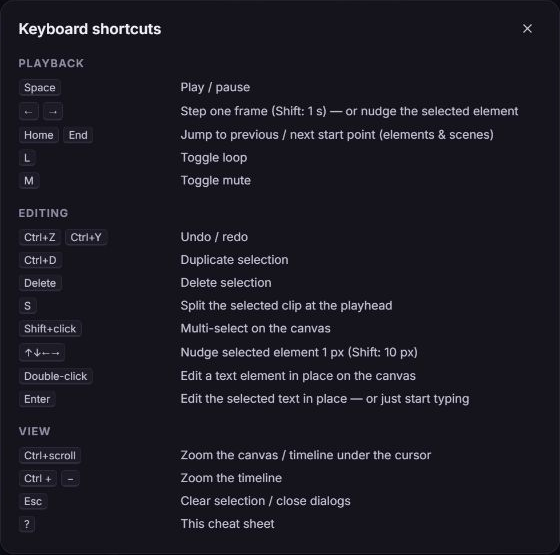
Playback
| Shortcut | Action |
|---|---|
| Space | Play or pause. |
| Left / Right | Step one frame when no element is selected; Shift steps one second. |
| Home / End | Jump to the previous or next content start point. |
| L | Toggle preview loop. |
| M | Toggle preview mute. |
With an element selected, arrow keys move it instead of stepping through frames. Use the visible Previous frame and Next frame controls when you want frame stepping without clearing the selection.
Editing
| Shortcut | Action |
|---|---|
| Ctrl+Z | Undo a local project edit. |
| Ctrl+Y or Ctrl+Shift+Z | Redo a local project edit. |
| Ctrl+D | Duplicate the selection. |
| Delete | Delete the selection. |
| S | Split the selected clip at the playhead when a split is valid. |
| Shift+click | Add or remove an element from a stage selection. |
| Arrow keys | Nudge a selected element by one pixel; Shift uses ten pixels. |
| Double-click or Enter on selected text | Edit text in place on the canvas. |
Project and view
| Shortcut | Action |
|---|---|
| Ctrl+scroll | Zoom the canvas or timeline under the pointer. |
| Ctrl+Plus / Ctrl+Minus | Zoom the timeline. |
| Escape | Clear selection or close a dialog. |
| ? | Open the shortcut dialog. |
The editor recognizes the platform modifier key for supported commands, including Command on macOS. Keyboard actions are kept inside active dialogs; text fields retain their normal typing behavior.
When an editable text element is selected, printable keys such as S, L, M, or ? can start inline text editing. Clear the text selection first, or use the corresponding visible control.
Touch and pointer alternatives
Use the visible playback buttons, Selected element actions, More editor actions, and Pan canvas when a keyboard is unavailable. Undo and Redo are available in the top bar or compact actions menu.
Important notes
Undo applies to local composition edits. It does not restore deleted account uploads, cloud project records, or saved design-library entries. Save or export a copy before major changes.