Add and trim video clips
Add footage to a video project and choose which part plays, when it appears, and how its audio is mixed.
When to use it
Use video clips for product demonstrations, recorded footage, stock backgrounds, and montages. A source trim selects a portion of the original file; a timeline window controls where that clip appears in your composition.
Before you begin
Open a Video project. Video tools are hidden in image projects. Use a file you have uploaded or a URL the cloud render service can access.
How to add and fit a clip
Navigation: Editor → Videos.
- Select the scene and place the playhead where the clip should begin.
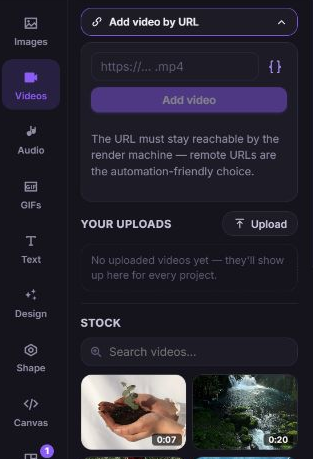
- Add footage from a URL, upload, or stock result.
- Select the clip and open Design → Source.
- Set Resize mode to contain — letterbox, fully visible or cover — fill frame, may crop.
- Adjust its layout if it should occupy only part of the canvas.
How to trim and change playback
- Select the clip on the stage or timeline and open Timing.
- Under Source trim, set Video begin to the time in the source file where playback should start.
- Set Video end to the source time where playback should stop, or leave it automatic to use the remaining source.
- Set Playback speed. A value of
1uses normal speed; changing speed changes how the selected source segment plays. - Set Volume. Use
0%to mute the clip's own audio while keeping its picture. - Under Timeline window, set Appears at (enterBegin) and Disappears at (exitEnd) to position the clip in the composition.
- Play across the edited boundary and check the result.
How to split a clip
- Select the clip and place the playhead inside it.
- Open Selected element actions or right-click the clip.
- Click Split at playhead, or press
Soutside a text field. - Select each resulting segment to edit it separately.
The split action is disabled when the current selection or playhead cannot be split. Use Undo if the cut is in the wrong place.
What happens next
Your source file stays unchanged; the project stores the trim, timing, speed, and volume settings. To join footage with an effect, use Transition to another video, or arrange clips in scenes.
Troubleshooting
The clip is cut off before it finishes
Cause: Its visible window or the containing scene/project ends before the desired footage.
Solution: Check Video begin, Video end, and Playback speed, then extend Disappears at (exitEnd) if necessary. If the timeline shows a content-length warning, use Extend scene to fit or Extend project to fit.