Add audio, music, and sound effects
Use audio tracks to add music, narration, and short sound effects to a video project.
When to use it
Add background music across a whole movie, narration for one scene, or an effect at a specific moment. Audio has its own tracks in the timeline and does not appear as a visual element on the stage.
Before you begin
Open a Video project. Sign in if you want to upload audio. Select a scene for scene-local sound, or Scenes → Global overlays for audio across the movie.
How to add audio
Navigation: Editor → Audio.
- Put the playhead at the start of the desired audio.
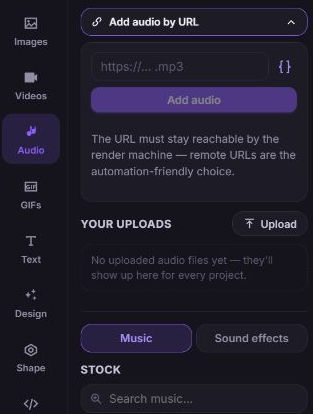
- Use Add audio by URL, Your uploads, or Music to choose a source. See Add and manage media.
- Use Play preview to listen to a music track, then click the result to add it.
- For a short cue, choose Sound effects, enter a search term, preview the effect, and click its add control.
- Select the resulting audio clip in an A track on the timeline.
How to place and trim audio
- Select the audio clip to open its properties.
- Under Timeline placement, set Starts at (enter).
- Set Ends at for a fixed playback window, or enable Match project length. When editing a scene, this option reads Match scene length.
- Under Source trim, set Audio begin and Audio end to select the part of the source file to use.
- Under Mix, set Volume, Speed (atempo), and Track.
- Use timeline playback to listen with the other audio and footage.
Match project length and Match scene length let background music follow that timeline without extending it. A shorter audio segment loops to fill its playback window. The timeline's waveform and loop markers help you see this behavior.
How to mute or remove sound
- To mute one audio track, set its Volume to
0%. - To mute audio embedded in footage, select that video and set Timing → Source trim → Volume to
0%. - To remove an audio element, select it and choose Delete from its element actions, or press
Delete.
The timeline Mute (M) control only mutes the editor preview; it does not set the output volume. Deleting a timeline element removes that use of the source, not the uploaded file.
What happens next
The audio settings are stored with the project. Check full-movie playback after changing scene lengths or transitions, then render to verify the final mix.