Troubleshoot failed or delayed renders
Use the render status and the error shown at submission to choose the next action.
When to use it
Use this guide if a job fails, stays in the queue, does not download, or differs from its browser preview.
How to check a render
Navigation: Dashboard → Renders.
- Open Renders.
- Choose All, Videos or Images to match your output.
- Enter the name or resolution in Search by name or resolution…. This searches the latest 50 loaded jobs for the selected type.
- Read the job's badge. Ready means completed; Rendering means active processing; Waiting, Pending or Stalled have not produced a completed output; Failed means the job did not complete successfully.
- If you submitted from the editor, also read its render dialog. It can show the error message and field-level details. A bulk render's detail page shows errors for failed items.
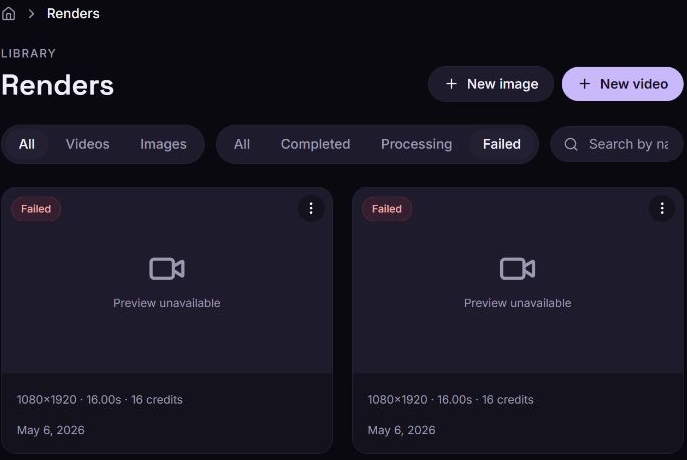
The standard Renders card does not expose a full error-detail panel or a retry button. For deeper diagnostics, developers can retrieve job status through the API reference. Keep the original error message when it is displayed.
My render failed
Cause: A failed job can result from invalid project data or a media source that the cloud renderer cannot load or process. The specific error determines the cause.
Solution:
- Read the error in the editor's render dialog or the relevant bulk item.
- Return to the saved draft under Projects → Open in editor, or the template you used.
- Correct the field or asset identified in the error. Do not assume changing the render's display name changes the project.
- Preview the project. For templates, run Preview (free) again; this checks the resolved project JSON, not the final media.
- Deliberately submit a new render only after correcting the cause. A new submission may spend credits.
If the failure has no visible explanation, contact https://zvid.io/contact with the job ID when available, the approximate time, and the error text. Do not send API keys or webhook secrets.
My render is taking longer than expected
Cause: The job may still be queued or processing. A network interruption may also leave the browser showing an older status.
Solution:
- Check Renders and keep the status filter on All to include waiting jobs. The Processing filter does not include every queued state.
- Reload the page to fetch the latest stored state. The editor also checks accepted jobs while its render dialog is open.
- Check whether a completed job already exists before rendering again.
- If the state remains unchanged and you need assistance, include the job information when contacting support.
No completion-time guarantee is implied by a progress percentage. Do not create repeated paid submissions to refresh progress.
I do not have enough credits
Cause: The requested render requires more available credits than the account currently has, including reservations for other work.
Solution: Open Credits, select Refresh, and inspect your subscription and one-time balances. Wait for existing jobs to finish or review available options under Subscription. You can also reduce the project's dimensions or duration and validate the revised request. See credits and usage.
An image, video or audio asset could not be loaded
Cause: A source URL may require sign-in, expire, return an HTML page instead of media, or refer to an unsupported or corrupt file.
Solution:
- Inspect the selected item's source in the editor.
- Use a direct media URL that the cloud service can access. A page's share link is not necessarily a media-file URL.
- Replace an expired or inaccessible URL, or use the editor's Upload workflow.
- Check the revised project before submitting again. See media asset requirements.
My video is Ready but will not download
Cause: Download needs a usable output URL and a successful browser fetch. Connectivity or browser restrictions can interrupt the download.
Solution: Open the three-dot menu → View to check whether the output opens, then retry Download. If neither works, reload the list and contact support with the job information. A failed download does not itself mean the cloud render failed.
The finished video differs from the preview
Cause: Browser preview and cloud rendering use different playback and rendering paths. Some effects cannot be reproduced exactly in the editor preview.
Solution: Compare the actual output with the intended layout, then check the element's timing, font, fit mode and source. See preview limitations and canvas and positioning. Change the project and submit a new render only when needed.
What happens next
After correcting the cause, follow the new job until it reaches Ready and download the output. Keep the saved draft for future edits.