Templates and bulk rendering
Templates let you reuse a design while changing its content; bulk rendering applies many sets of content to that design in one submission.
When to use it
Use a template when the layout stays the same but product details, text, images, colors, or other variables change between outputs. Use a batch when you already have multiple sets of values to process.
| Task | Start here |
|---|---|
| Create, edit, duplicate, or archive a reusable design | Manage templates |
| Validate one set of variable values without creating media | Preview a template for free |
| Produce one personalized video or image | Render from a template |
| Produce outputs from a table or CSV | Create a bulk render |
| Build automation with code | Template basics and bulk rendering API |
Templates
Navigation: Dashboard → Templates
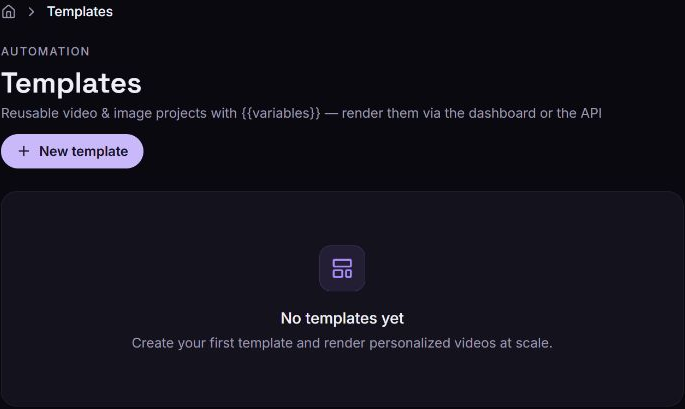
- Create a template with New template, or save one from the visual editor.
- Select the template name to open its detail page.
- In Use template, enter the variable values for an output.
- Select Preview (free) to resolve the saved template into JSON and validate it.
- When ready to create media, select Render video. This submits a paid render and opens Renders.
A template has a tpl_… ID that your applications can use for repeated API renders. The dashboard's template list contains your saved templates.
Bulk renders
Navigation: Dashboard → Bulk renders → New bulk render
- Choose a saved template.
- Enter one data row per output, or select Import CSV.
- Review the row count, variable values, and output format.
- Select Render N videos, where N is the displayed row count.
- Monitor the new batch and open or download completed outputs.
Rendering reserves credits. Rows rejected during validation can be corrected and submitted separately; accepted rows may already be rendering. Follow the bulk-render guide to avoid submitting successful rows twice.
What happens next
Single renders appear in Renders. Batch submissions also appear in Bulk renders, where you can inspect counts, errors, and individual outputs.