View, download, and manage renders
Renders is the dashboard library of video and image jobs submitted from your account.
When to use it
Open Renders to check whether an output is ready, play a completed video, download media, or manage your render history. To edit the underlying design, return to Projects or Templates.
Create a video or image
Navigation: Dashboard → Renders
- Select New video or New image.
- Create the design in the visual editor that opens.
- Follow Rendering & Export to submit it for rendering.
- Return to Renders to monitor the job.
The older /videos/add dashboard address also opens the video editor. If that redirect does not complete, select Open the editor.
Rendering uses credits. Saving an editor project alone does not add a finished output to this page.
Find a render
Navigation: Dashboard → Renders
- Choose All, Videos, or Images in the first filter group.
- Choose All, Completed, Processing, or Failed in the second group.
- Enter a name or resolution, such as
1920x1080, in Search by name or resolution…. - Clear the search and return both groups to All to broaden the results.
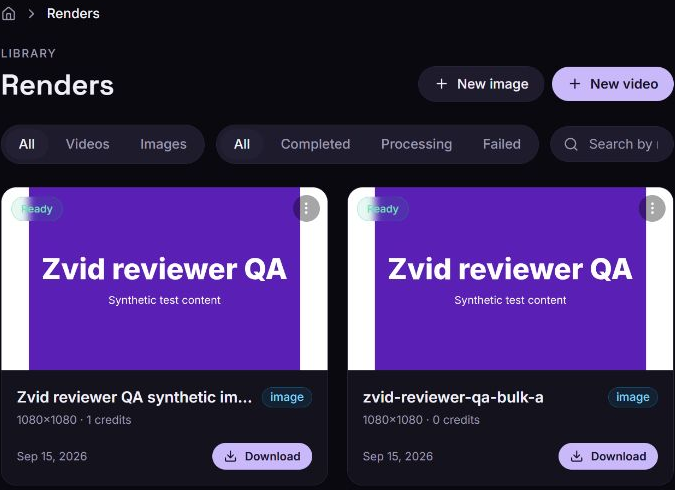
The page loads the latest 50 jobs for the selected media type. The status filter and search apply to those loaded jobs. For older history outside this list, developers can use the jobs API.
Processing includes jobs actively rendering. To see jobs still marked Waiting or Pending, use the All status filter.
Understand render status
| Card label | Meaning and next action |
|---|---|
| Ready | Rendering completed. Use View or Download when the output is available. |
| Rendering | The job is active. A percentage bar appears when progress updates are available for a processing job. |
| Waiting | The job is waiting in the queue. Keep the All filter selected to see it. |
| Pending | The job has not reached a displayed rendering or completion state. Reload the page if it does not update. |
| Stalled | Processing has been interrupted. Check again for a final status; see render lifecycle for recovery behavior. |
| Failed | The job did not produce a successful output. Follow the recovery steps below. |
Cards show the name, dimensions, creation date, and credit amount. Videos also show duration. An image badge identifies a still-image job; a template badge identifies an output created from a template. The credit figure uses consumed credits when available and otherwise the estimate.
While the page is open, live status and progress messages update the cards. A completion notification refreshes the list with the output details. Reload the page to retrieve the current state if live updates stop.
Preview or open a completed output
- Find a card marked Ready.
- Hover over its thumbnail and select Play video or View image. Alternatively, open the three-dot menu and select View.
- The media opens in a new browser tab. Use the browser's playback or image controls.
To share an available output URL, copy the address from that media tab. An output URL opens the finished media; it does not open the editable project.
Download a video or image
- Find a Ready card with a Download button.
- Select Download.
- Look for Download started, then find the file in your browser's downloads.
The downloaded filename includes the render's job ID. The Download button appears only after completion and when an output URL is available.
Rename a render
- Open the card's three-dot menu and select Rename.
- In Rename Job, enter a different, nonempty New name.
- Select Save, or Cancel to keep the current name.
The card updates and Video renamed successfully appears. Renaming changes the job's displayed name; it does not edit the video or image content.
Delete a render
Deleting removes the job from your history and requests deletion of its stored output and thumbnail. The action has no dashboard undo. Download anything you need first, and update applications or published pages that rely on the output URL because that URL may stop working.
- Open the card's three-dot menu and select Delete.
- Read Confirm Deletion.
- Select Confirm to delete, or Cancel to keep the job.
The deleted card disappears. This action does not delete a saved editor project or template.
An actively rendering job cannot be deleted. Wait for it to finish and try again. When a queued job can be canceled before rendering starts, its reserved credits are refunded. Deleting an already completed job does not refund its rendering cost.
Troubleshooting
No renders match your filters
Cause: The selected type, status, or search excludes all loaded jobs.
Solution: Clear Search by name or resolution…, then choose All in both filter groups. Remember that the page loads only the latest 50 jobs for the selected type.
My render failed
Cause: Rendering could not finish. The render library card shows the failure state but does not display a detailed error panel or a retry button.
Solution: If the job belongs to a batch, open Bulk renders and read its error there. For an API submission, inspect the job through Get render job. Correct the original project, template, variables, or media URLs and submit a new render from that source. See Errors and retries for error-specific recovery.
A render is taking longer than expected
Cause: The job may still be waiting, actively processing, or showing an older state because live updates were interrupted.
Solution: Use the All status filter and reload the page. Check the current state before submitting the same work again; another submission creates a separate job and can spend credits. If the job remains stuck, provide its ID and submission time at https://zvid.io/contact.
Download URL not available or download failed
Cause: The output is not available yet, or the browser could not retrieve it.
Solution: Confirm the card is Ready, reload Renders, and try Download again. Use View to check whether the media URL opens. If the output also fails to open, contact https://zvid.io/contact with the job ID.