Create an API key
An API key lets an application or automation authenticate requests to your Zvid account without using your sign-in password.
When to use it
Create a key for a server application, SDK, or Zvid community node in n8n. For an AI client that supports OAuth, you can instead sign in to Zvid through MCP.
Before you begin
Sign in and complete your account verification and profile. Have a secure place ready to store the key, such as your application's secret settings.
Create and copy a key
Location: Dashboard → API Keys.
- Select API Keys in the left sidebar, or open API Keys.
- Click Create API key.

- In Create API Key, enter an API Key Name, such as
Production automation. Use a different name for each active key.
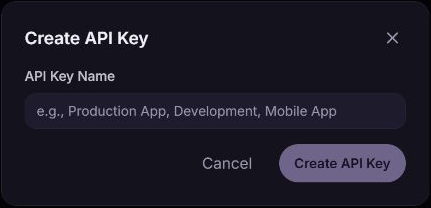
- Click Create API Key.
- In API Key Created, click the copy icon labeled Copy API key.
- Store the complete value in your application's secret settings, then click Done.
The complete zvid_… value appears only when the key is created. Afterward, the list displays a masked prefix. You cannot recover a lost secret; create a replacement and delete the old key.
What happens next
The key appears as a card with its name, creation date, and masked value. Send the complete key in the x-api-key header when calling compatible endpoints at https://api.zvid.io.
Follow Authentication for request examples, or Quick Start to submit your first API render. Creating a key does not render media; subsequent render requests use your account's credits and limits.
Important notes
- Store keys in server-side secrets or integration credentials. Do not put them in browser code, public repositories, logs, or screenshots.
- The dashboard does not provide a permissions, expiry, rename, or usage-report form for each key. Additional key-management operations are described in the API reference.
- A rate-limit warning can appear on a key card. For the actual response and recovery guidance, use API error and retry guidance rather than treating the warning as a quota setting.
Troubleshooting
A key with this name already exists
Cause: Another active key uses the same name.
Solution: Choose a unique name, for example Production automation September, and create again.
The key does not authenticate
Solution: Confirm that you copied the complete secret rather than its masked prefix, that it has no extra spaces, and that the request sends x-api-key. A deleted key cannot be reused. See Authentication.
Copying to the clipboard fails
Select and copy the full value directly from API Key Created before closing it. If you have already closed it without saving the key, create a replacement.