Check credits and usage
The Credits page shows how many rendering credits are available and the recent activity that changes your balance.
When to use it
Check Credits before a render or batch, after a purchase, or when a request reports insufficient credits.
Check your balance
Location: Dashboard → Credits.
- Select Credits in the sidebar, or open Credits.
- Read Total available credits.
- Check the subscription and one-time amounts below the total.
- Click Refresh to retrieve the latest balance and activity.
| Credit pool | How it works |
|---|---|
| Subscription | Your recurring allowance. Subscription credits are used first and replenish for the next monthly credit period, including on annually billed plans. |
| One-time | Credits from packs and eligible promotions. These are used after subscription credits and do not expire with the subscription cycle. |
Understand a render's cost
| Output | Credit cost |
|---|---|
Video at or below 2,073,600 pixels (width × height) | 1 credit per second |
| Video above 2,073,600 pixels | 4 credits per second |
| Still image | 1 credit per image, including bulk renders |
Video totals round up to a whole credit. For example, a 10-second 1920×1080 video costs 10 credits. A portrait 1080×1920 video uses the same rate. Plan dimension and duration limits apply separately.
Credits are reserved when the render is queued. Failed or cancelled renders receive automatic refunds. See Credits, plans, and limits for calculation and validation details.
Review usage and transactions
- Review this month, today, daily average, and total used below the balance.
- Scroll to Transaction history to inspect descriptions, dates, and credit amounts.
- Click Refresh after a render, refund, or purchase to reload the page data.
Usage cards are calculated from a 30-day usage response; total used is not a lifetime total. The page shows the latest 50 transactions and has no date filter, pagination, or export control. For a longer ledger or a different API usage timeframe, use the Credits API reference.
Use each transaction's description and the refreshed balance to understand what happened. Recent reservations and later refunds are separate activity.
Redeem a credit promo code
Location: Dashboard → Credits → Have a promo code?
- Enter the code in Have a promo code?
- Click Redeem.
- Wait for the confirmation showing how many credits were added. The balance and history refresh automatically.
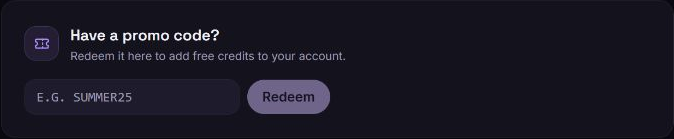
Credit promo codes grant credits. A Discount code (optional) in Subscription is a separate checkout discount; enter each code in the location specified with its offer.
Get more credits
Click Get more credits. On Subscription, you can buy a one-time credit pack or choose a plan. A pack adds credits but does not change your plan's rendering limits.
Troubleshooting
I have insufficient credits
Cause: The available balance is below the render's required credit amount; other queued work may already have reserved credits.
Solution: Click Refresh, review recent activity, and compare the balance with your render estimate. Buy credits, change your plan, or reduce the output duration or resolution before submitting again.
My promo code was rejected
Cause: Codes can have expiry dates, eligibility restrictions, and redemption limits.
Solution: Check the spelling and the offer's terms, confirm it is a credit promo code, and review the error shown after Redeem. Do not repeatedly redeem a code that has already succeeded.
A purchase or refund is not visible
Solution: Allow the operation to finish, then click Refresh. Purchases are applied after payment processing completes. If the balance still does not reflect a completed operation, contact https://zvid.io/contact with its date and render or payment reference; do not send card details or credentials.