Manage projects and saved drafts
Projects lists designs saved from the visual editor so you can continue editing them later.
When to use it
Use a project for work you want to revise: a campaign design, a reusable scene arrangement, or an image layout. To find finished media instead, open Renders.
Before you begin
Sign in with the account that saved the project. Saving in the editor creates the cloud draft shown here. An unsaved design in a browser does not appear in the dashboard list.
Create a project
Navigation: Dashboard → Projects → New project
-
Select Projects in the sidebar.
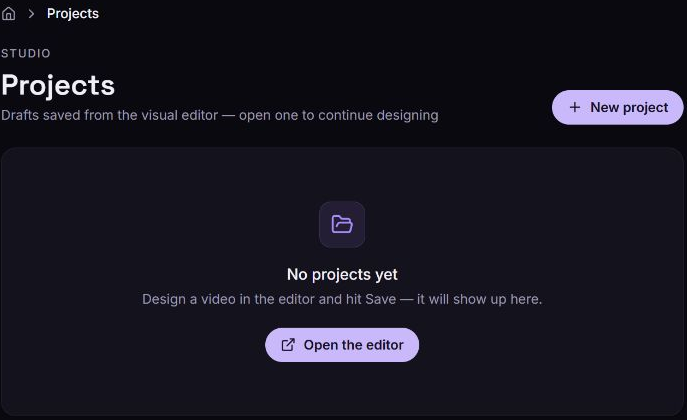
-
Select New project. On an empty page, Open the editor leads to the same editor.
-
Build your design in the editor and save it.
-
Return to Projects and reload the page if the new draft has not appeared.
The saved project appears with its name, version, project ID, and updated time. Still-image projects also show an image badge.
Open a saved project
Navigation: Dashboard → Projects
- Find the project by name in the list.
- Select the project name or the Open in editor icon beside it.
- Continue editing in the new editor tab, then save your changes.
Each project has a direct editor link containing its prj_… ID. The link identifies the saved design; it does not make the project public or grant access to another account.
Copy a project ID
- Open Projects.
- Select the ID beneath the project name. Its tooltip is Copy project ID.
- Wait for Project ID copied to clipboard before pasting it into your application or support request.
If copying fails, select the visible ID and copy it manually. A project ID identifies the editable draft, not a completed render.
Rename a project
- On Projects, select the Rename pencil icon beside the project.
- In Rename project, replace Name with the new name. Use a nonempty name of up to 255 characters.
- Select Rename. Select Cancel to leave the name unchanged.
The project list updates and shows Project renamed. The project retains its ID, so an existing editor deep link still identifies it.
Delete a project
Deleting a project permanently removes the saved draft. The dashboard has no restore control. Rendered videos and images already produced from the project are unaffected. Applications that rely on reopening this saved project will no longer be able to load it.
- Open Projects and locate the draft to remove.
- Select Delete project, the trash icon on its row.
- Read the browser confirmation and confirm the deletion, or cancel to keep the draft.
The row disappears and Project deleted appears. To remove finished output as well, use the separate render deletion action.
Renders
A saved project and a render are different records. A project stores the editable design; a render produces a video or image and uses credits. Rendering again creates another output job.
Continue with View, download, and manage renders for status, playback, downloads, renaming, and deletion.
Troubleshooting
Unable to load your projects
Cause: The dashboard could not retrieve the saved-project list.
Solution: Select Try again in the error panel. During a failed refresh, previously loaded projects can remain visible; their presence does not mean the latest refresh succeeded.
A saved project is missing
Cause: The design may not have been saved to this account, or it may be outside the first 50 drafts displayed by the dashboard.
Solution: Confirm the editor save completed and that the dashboard uses the same account, then reload Projects. For a larger library, use the editor's project browser. An existing direct editor link can also reopen a project you still own.
Searching does not change the list
Cause: The top-bar Search projects… field currently opens the project page without applying a filter.
Solution: Find the project in the visible list, or use the editor's project browser. Do not interpret an unchanged list as a failed save.