Create and manage templates
Templates stores reusable video and image designs with variables you can replace for each render.
When to use it
Use a template when you want many outputs with the same layout and different content. For example, keep the same product-video design while changing its title, photo, and brand color. Use bulk rendering when those values are ready in multiple rows or a CSV file.
Before you begin
Sign in with the account that owns the template. To create a template in the dashboard, use valid project JSON, including defaults for its variables. For a visual authoring workflow, start with Variables & Templates in the editor.
Creating or saving a template validates it against the applicable plan limits. Producing media requires enough rendering credits; Preview (free) does not create media or use rendering credits.
Browse your saved templates
Navigation: Dashboard → Templates
- Select Templates in the sidebar.
- Choose All, Video, or Image to narrow the list.
- Select a template name or its Edit / use template icon to open its detail page.
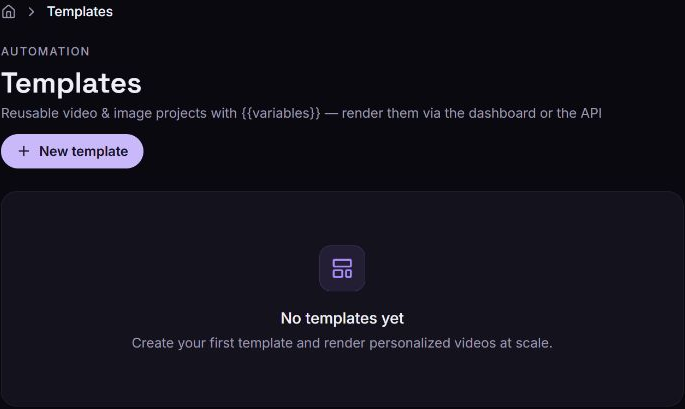
Each row shows the template version, description when provided, variable count, updated time, and tpl_… ID. The page displays up to 50 active templates; it is your saved-template list.
Create a template
Navigation: Dashboard → Templates → New template
-
Select New template.
-
Enter Name. Optionally enter Description (optional).
-
In Project JSON, adapt the prefilled starter or paste your project definition. Keep a default in
variablesfor every placeholder, and give every video scene an explicit duration.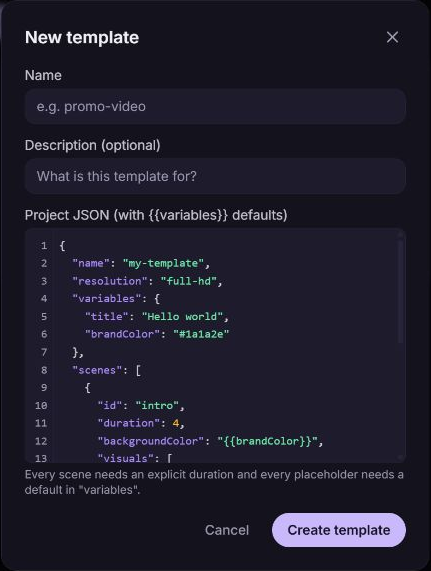
-
Select Create template.
-
If validation reports a field and message, correct that field and submit again.
The dialog closes, Template created appears, and the new template joins the list. Select its name to use it. Cancel closes the dialog without creating a template.
For the project structure and placeholder rules, see Template basics. The JSON editor provides syntax assistance and property suggestions; successful parsing alone does not guarantee a valid renderable design.
Copy a template ID
- Open Templates or a template's detail page.
- Select its visible
tpl_…ID. The tooltip is Copy template ID for API use. - Wait for Template ID copied to clipboard.
Use that ID in template-based API requests. An ID identifies a template; API calls still require authentication for its owning account.
Edit a template and save a new version
Navigation: Dashboard → Templates → Template name
- In the Template section, edit Name, Description, or Project JSON.
- Select Save (new version).
- Resolve any displayed validation errors and save again if necessary.
After a successful save, the version number increases and the confirmation identifies the new version. The template retains its ID. Future uses of that ID use the updated definition, so coordinate changes with automations that depend on its variables and layout. Saving also resets the Use template inputs to the updated defaults.
To work visually, select Open in editor on the detail page, or Open in the visual editor in the list. Follow the editor template workflow to save your changes.
Preview (free) and Render video use the saved template. Save changes in Project JSON before testing them with these actions.
Duplicate a template
- Return to Templates.
- Select the Duplicate (save as…) icon on the template's row.
- Open the newly created Copy of … template, change its name or content, and select Save (new version).
Duplication creates a separate template with a different ID and counts toward your template allowance. Automations using the original ID keep using the original template.
Set values for one output
Navigation: Dashboard → Templates → Template name → Use template
-
Review the fields populated from the saved variable defaults.
-
Change the values for this output using the appropriate input:
Variable type What to enter String Text such as a title, color, or URL. Number A number. Leaving it blank keeps the saved default. Boolean Select or clear the checkbox. Array or object Valid JSON matching the data structure your template uses. -
Optionally choose Output format override (optional). Template default keeps the saved resolution; another choice applies a named resolution preset to this use of the template.
The field named Output format override (optional) controls resolution presets here. Values entered in Use template are inputs for previewing or rendering; they do not replace the saved variable defaults. Variables marked unused are declared but not referenced by the saved design.
Preview a template for free
- Set the desired values in Use template.
- Select Preview (free).
- Review Resolved preview: scene count, total duration when available, substitution count, and the resolved project JSON.
The preview resolves placeholders and validates the resulting project. It creates no job and no video or image. For a visual canvas preview, use the editor preview. For a credit estimate through the API, see Validate and estimate.
Render from a template
- Save any changes to the template definition.
- Set the output values and optional resolution in Use template.
- Run Preview (free) and correct any validation errors.
- Select Render video when ready to spend rendering credits.
- The dashboard confirms the reserved credits and opens Renders. Wait for Ready, then view or download the result.
The button is currently labeled Render video for both video and image templates. The saved template type determines whether the result is a video or still image.
Archive a template
Archiving hides the template from the active list and prevents new renders using its ID. Existing rendered media is not deleted. The dashboard has no unarchive or undo control. Update integrations that still submit this template ID before archiving it.
- Open Templates.
- Select Archive template on the appropriate row.
- Read the browser confirmation and confirm, or cancel to keep it active.
The template disappears from the list and Template archived appears. Archiving an unused template can free an active-template allowance for a new one.
Troubleshooting
Project JSON is not valid JSON
Cause: The definition cannot be parsed, for example because of missing quotes, an extra comma, or an unmatched bracket.
Solution: Correct the JSON in Project JSON, then select Create template or Save (new version) again. If parsing succeeds but field errors remain, follow those messages and the template requirements.
A variable is not valid JSON
Cause: An array or object field in Use template contains invalid JSON.
Solution: Correct the named variable's JSON and select Preview (free) again. Plain text fields do not need JSON string quotes.
Template limit reached
Cause: Your active templates have reached the plan allowance.
Solution: Archive a template you no longer need, or review your subscription for a higher allowance. Check any integrations using the template before archiving it.
Preview succeeds but rendering fails
Cause: A free preview validates the resolved project but does not complete a media render. Rendering can still encounter account limits, insufficient credits, or media-download problems.
Solution: Read the submission error, check Credits, and correct the reported issue. For a job already marked Failed, use the render recovery guidance.
Template not found
Cause: The link may refer to an unavailable template or a template owned by another account.
Solution: Open Templates in the owning account and choose an active template from the list. An archived template cannot be used for new renders.