Manage your subscription and buy credits
The Subscription page manages your paid plan, billing period, and one-time credit purchases.
When to use it
Use this page when you need more credits or higher plan limits, want to change your billing period, or need to resolve a payment issue.
Open your subscription
Location: Dashboard → profile menu → Subscription.
- Open your profile menu in the top bar.
- Select Subscription, or open Subscription directly.
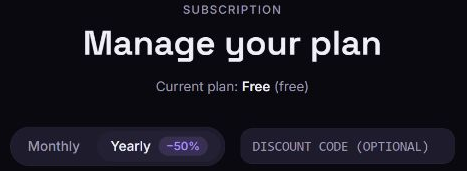
- Under Manage your plan, check Current plan, its status, Next billing, and any Scheduled change shown.
You can also open this page with Get more credits on the Credits page.
Subscribe to a paid plan
- Choose Monthly or Yearly. For a new account, Yearly is initially selected; check the choice before continuing.
- Review the available plan cards and their listed features. With Yearly, the large monthly amount is an equivalent monthly rate; the card also shows the amount billed yearly.
- If offered, enter your checkout promotion in Discount code (optional).
- Click Subscribe on the chosen plan.
- Review the plan, billing period, discount, and final amount in the Paddle checkout, then complete checkout if correct.
Payment and subscription updates are processed after checkout. Reload Subscription to check the updated status and refresh Credits to see the current balance. Use the displayed catalog and checkout for current amounts; prices are not fixed in this guide.
Upgrade your plan
- Choose the billing period you want.
- Click Upgrade on a higher plan.
- In Confirm upgrade, review Current, New, Cadence, and Prorated charge (pay now). The preview can include total, subtotal, tax, and discount.
- Click Confirm to submit the upgrade, or Cancel to leave the plan unchanged.
- Read Upgrade in progress, then click OK.
The confirmation previews the prorated amount due now. The final amount may vary slightly. Review it before selecting Confirm.
The upgrade may take a few minutes to appear. If it takes more than 10 minutes, use the support link shown in the result: https://zvid.io/contact.
Downgrade or change your billing period
- Choose Monthly or Yearly.
- To move to a lower tier, click Downgrade on that plan. To keep your tier and change its billing period, select the other period and click Change cadence on your current plan's card.
- Review the new plan or cadence and Expected effective date.
- Click Confirm to submit, or Cancel to close without submitting.
- Read the scheduled-change result and check the date under Manage your plan.
Changes are generally scheduled for the end of the current billing period. Use the effective date in your confirmation and subscription summary. Lower plan limits can affect future renders and the number of resources you can create. The dashboard does not provide a general undo button for downgrades or cadence changes.
Buy a one-time credit pack
Location: Subscription → Buy more credits.
- Scroll to Buy more credits.
- Review a pack's credit quantity and one-time price.
- Click Buy credits and review the Paddle checkout.
- Complete checkout if the amount is correct.
- After Payment received, allow a few moments for credits to be applied, then open Credits and click Refresh.
Packs work with any plan, including Free. Their credits do not expire and add to your balance. A pack does not upgrade plan limits or create a recurring subscription.
Resolve a payment issue
When a subscription is past_due, the page shows Payment issue — action required.
- Click Update payment method in that banner.
- Complete the required update in the Paddle customer portal, which opens in a new tab.
- Return to Subscription and reload to check the status after processing.
This button appears for past-due subscriptions. The dashboard does not provide a separate always-visible payment-method or invoice-history screen.
Troubleshooting
Subscribe or Buy credits stays on “Loading…”
Cause: Checkout has not finished loading.
Solution: Reload the page and wait for the button label to change. If it remains unavailable, contact https://zvid.io/contact.
A plan change shows “Something went wrong”
Solution: Close the message and reload to check your current plan and scheduled changes before retrying. Use the support link in the dialog if the requested state remains unclear.