Timeline & Scenes
The timeline is where timing happens: visual tracks (V0, V1, … — higher tracks render on top), audio tracks (A0, A1, … with waveforms), a subtitle lane, and a scene strip when the project uses scenes.
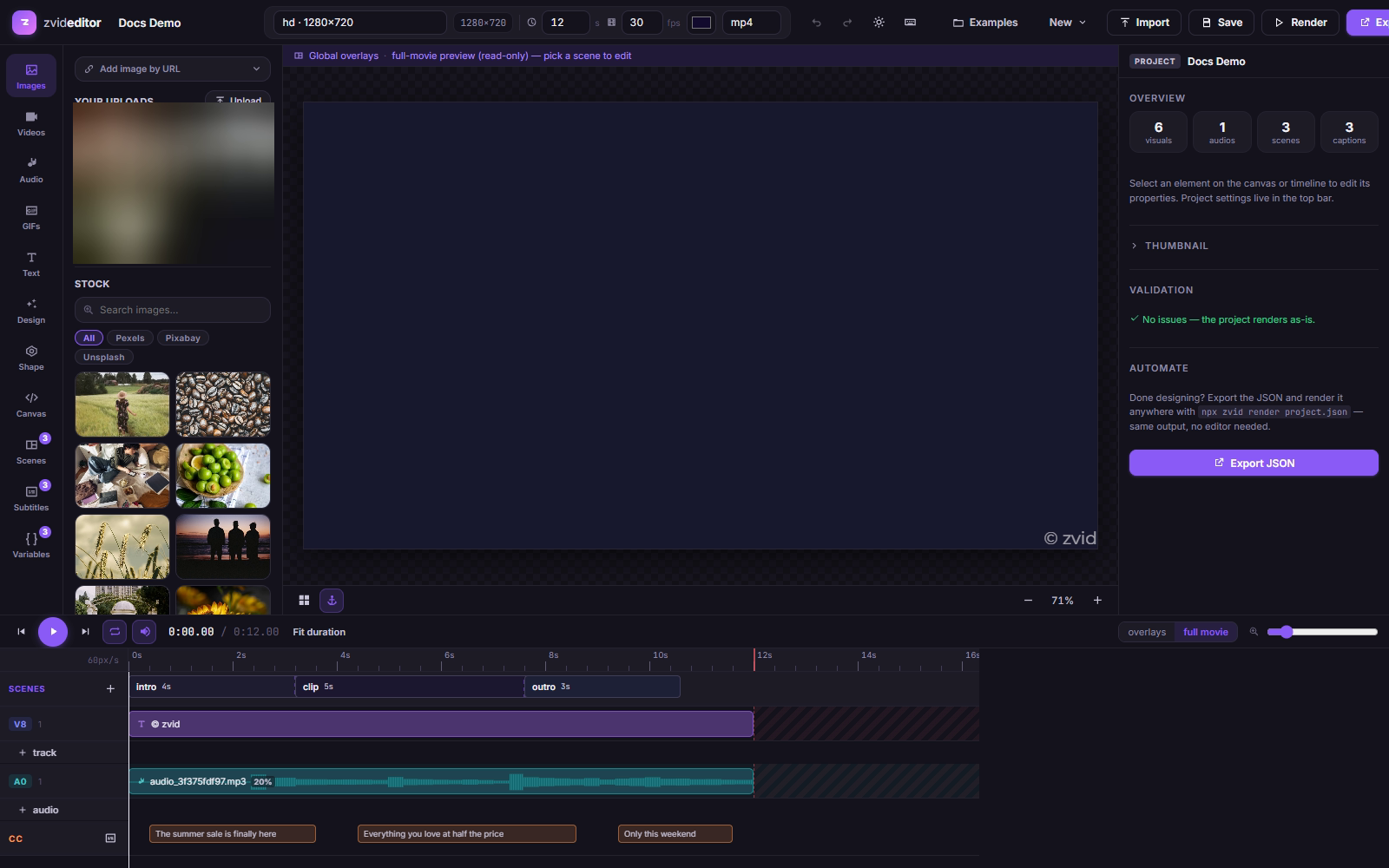
Clip operations
- Trim — drag a clip's edges to change its enter/exit times
(
enterBegin/exitEndin the JSON). - Split at playhead and merge with next — from the clip context menu.
- Move — drag along the track or to another track (this changes the
element's
track, i.e. its z-order). - Context menu — Delete, Cut, Copy, Paste, Duplicate, and Convert to scene.
- Track management — add or remove empty tracks with the +/− controls.
Fine-grained timing lives in the inspector's Timing tab (enter/exit, delay, and source trim for videos).
Transport & navigation
Play/pause (Space), skip to start/end (Home/End), loop (L), mute
(M), snap toggle, and the current/total time display. Zoom the timeline
with the slider (8–400 px/s) or Ctrl+scroll; click or drag on the ruler to
scrub.
When content extends past the project duration, a "content exceeds duration" warning appears with a one-click Fit duration fix.
Scenes
The Scenes tab and scene strip manage scenes — self-contained segments with local timelines:
- Add, reorder, and select scenes; each scene has its own duration (or auto-fit) and background color.
- Scene transitions — pick from 51 effects with a duration slider (0.1–5 s); the editor previews the same xfade effects the API renders.
- Convert to scene promotes timeline content into a new scene.
In image projects the timeline is hidden entirely.