Adding Media
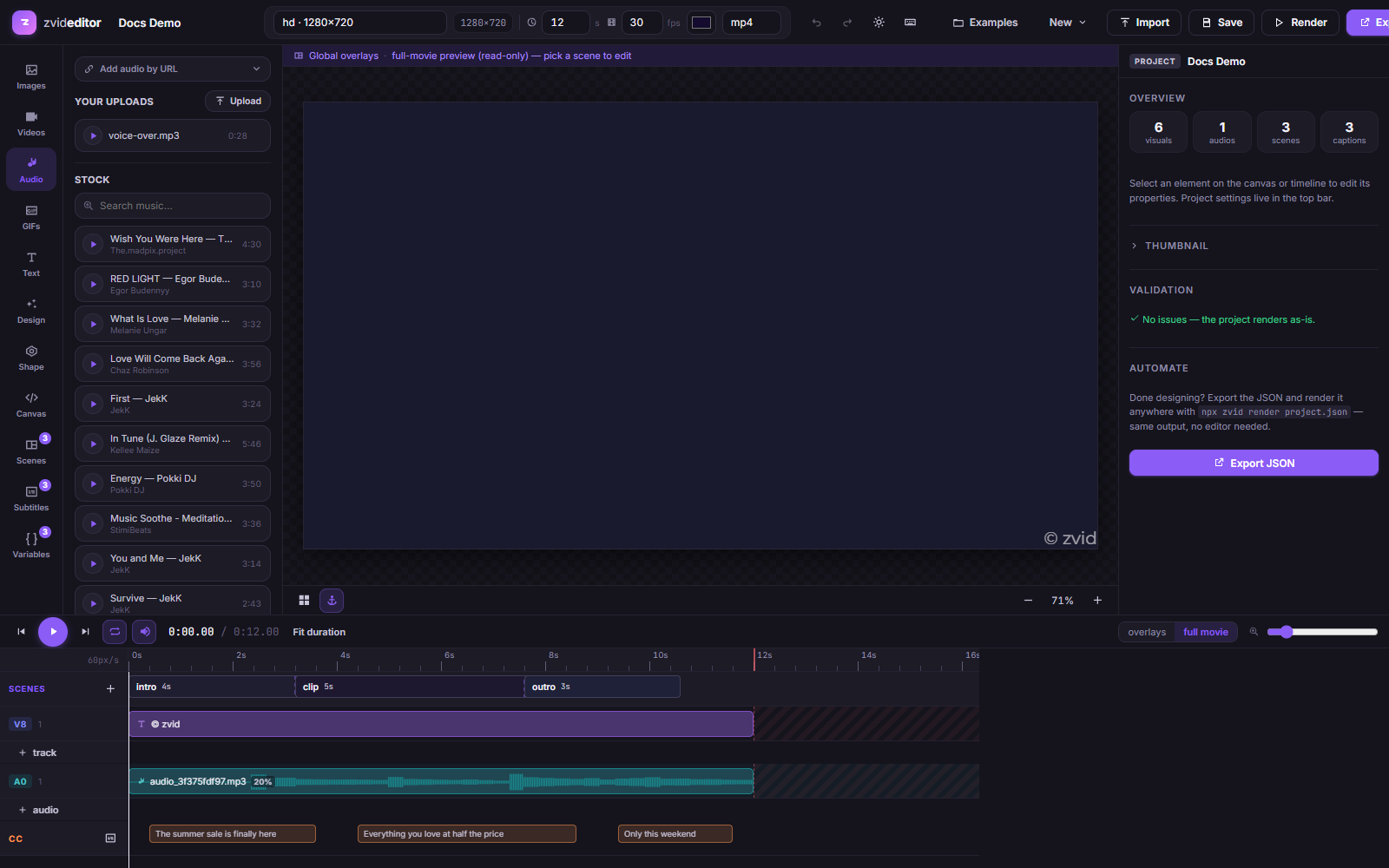
The first four rail tabs — Images, Videos, Audio, GIFs — all work the same way. Each combines three sources:
- Add by URL — paste any public media URL (placeholders like
{{logoUrl}}work here too, for templates). - Your uploads — drag-and-drop or browse to upload; files land in your hosted library and upload with a progress bar.
- Stock search — built-in search across providers, free to use.
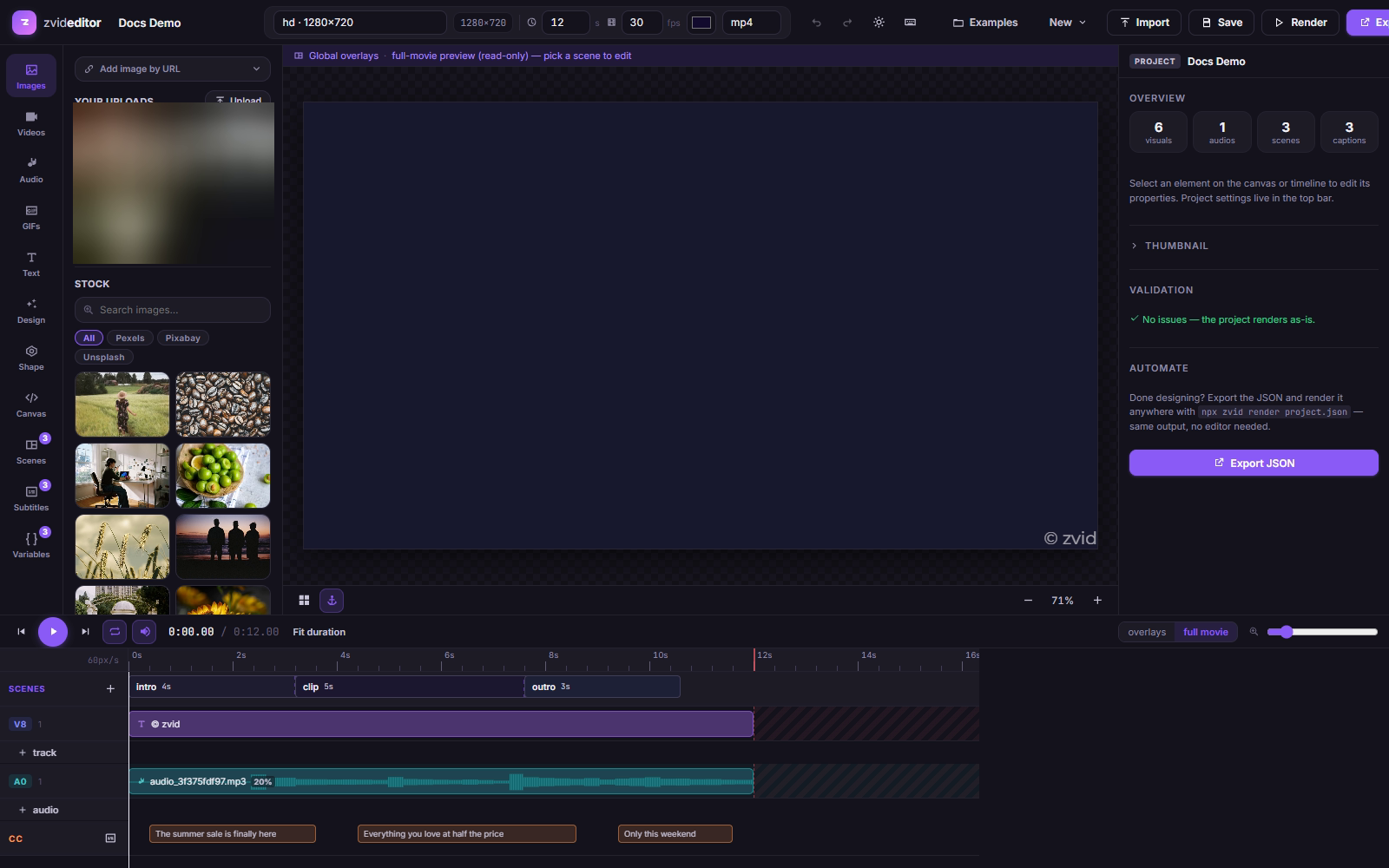
Stock providers
| Tab | Providers |
|---|---|
| Images | Pexels, Pixabay, Unsplash |
| Videos | Pexels, Pixabay |
| GIFs | Giphy |
| Audio | Jamendo |
Filter by provider with the chips, search, and scroll — results load infinitely. Hover a video or GIF result to preview it in place; click an audio result to listen before adding.
Click or drag a result onto the canvas (or the timeline) to add it as an element at the playhead.
Your uploads
Uploads are stored in your account's media library (also accessible via the Uploads API) and served from the CDN, so the same file works in the editor and in API payloads.
| Kind | Formats | Max size |
|---|---|---|
| Images | PNG, JPG, GIF, WebP, SVG, TIFF, BMP, ICO | 25 MB |
| Videos | MP4, MOV, MKV, AVI, WebM, FLV, WMV, OGV, M4V, 3GP, TS, … | 300 MB |
| Audio | MP3, WAV, AAC, FLAC, M4A, OGG, WMA, AIFF | 100 MB |
| GIFs | GIF | 50 MB |
Total storage: 2 GB per account. Delete files from the uploads list to reclaim space.
Tips
- Media added from stock uses the provider's CDN URL directly — the exported JSON works anywhere.
- For assets you control (brand kits, product shots), prefer uploads: URLs are stable and not subject to provider changes.