Variables & Templates
The Variables tab turns a project into a data-driven template without leaving the canvas.
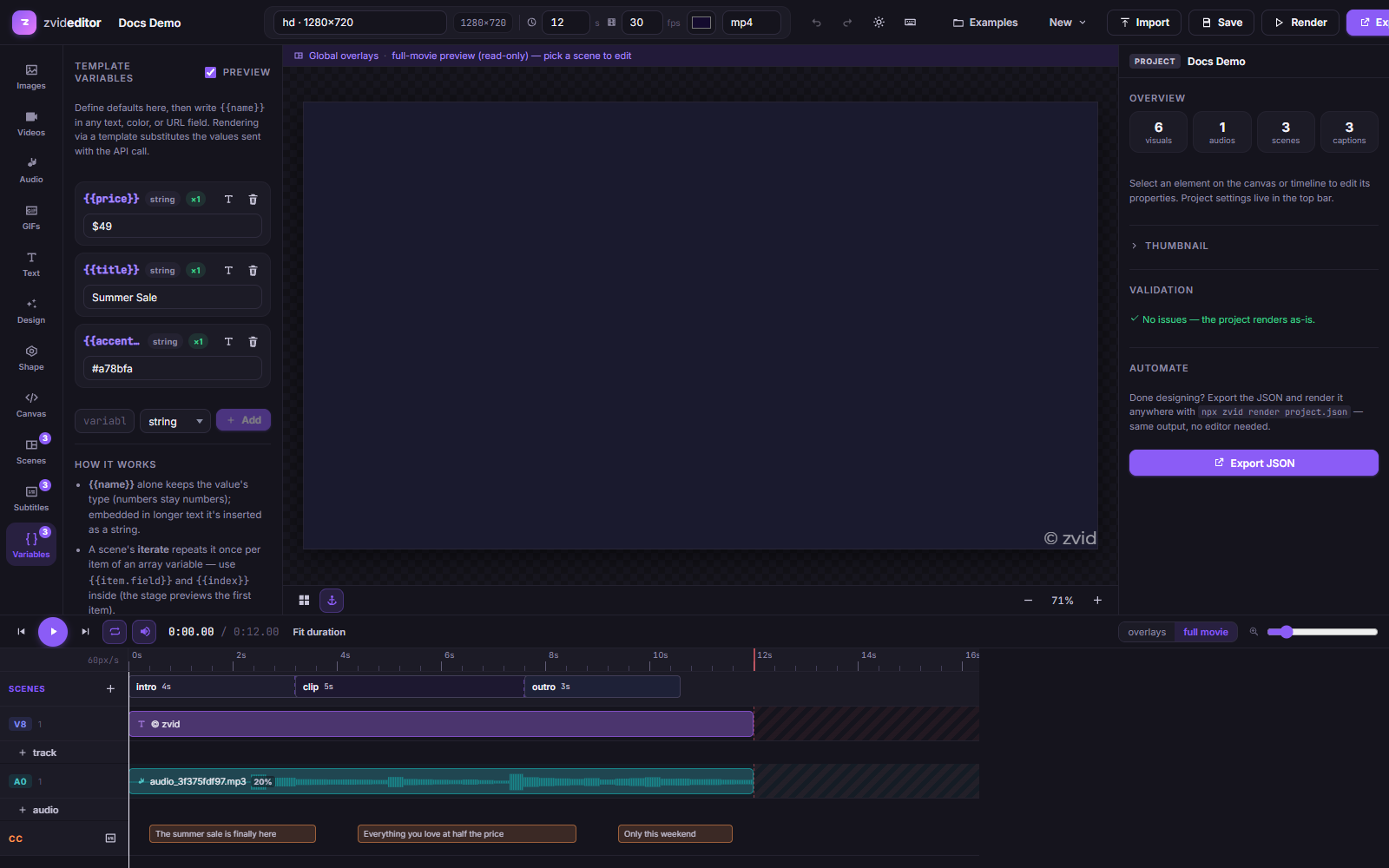
Defining variables
Add a variable and pick one of five types:
- String / Number / Boolean — simple inputs.
- Array / Object — a JSON editor with live parsing and a format button.
Each variable row shows its {{placeholder}} with a copy button and a usage
count. Renaming warns about existing usages; deleting a variable that's still
referenced asks for confirmation.
Using placeholders
Type {{name}} (or {{name.path.to.field}}) in text content, URLs, colors,
and numeric fields — the media tabs' Add by URL inputs accept placeholders
too. Editors with placeholder support offer an insertion menu and dot-path
autocomplete for object variables.
Preview toggle
The Preview toggle switches the stage between showing raw
{{placeholders}} and their resolved values — flip it to check real
content lengths and line breaks before shipping the template.
Iteration & conditions
Scenes support the full dynamic-content feature set from the Scenes settings:
- Iterate — bind a scene to an array variable; the stage previews the
first item, and the render produces one scene per item (
{{item.…}},{{index}}). - Condition — show or hide scenes/elements based on boolean flags.
- Problem detection flags undeclared variables and invalid references before you save.
From editor to API
Save → Save as template stores the project as a tpl_… id. Render it
with per-request data:
curl -X POST https://api.zvid.io/api/render/api-key \
  -H "x-api-key: YOUR_API_KEY" \
  -d '{ "template": "tpl_…", "variables": { "title": "Hello" } }'
Scale it up with bulk rendering — one request, one variable set per output video.