Canvas & Stage
Canvas setup
The top bar controls the canvas: 19 resolution presets (HD, Full HD,
squared, YouTube, TikTok, Instagram, Twitter, Facebook, Snapchat…) or custom
dimensions, plus duration, frame rate (1–120), background color, and output
format. These map 1:1 to the API's
project fields and
resolution presets.
Working on the stage
- Select an element with a click; Shift+click for multi-select.
- Drag to move — with smart snapping to the frame grid, other clips' edges, and the playhead (toggle snapping in the timeline transport).
- Resize with the corner/edge handles (aspect-ratio lock available); rotate with the rotation handle.
- Anchor picker — 9 positions controlling the element's transform origin,
mirroring the API's
anchor. - Copy/paste/duplicate/delete via
Ctrl+C/Ctrl+V/ context menu /Del. - The element context menu offers Delete, Copy, Duplicate, and Open in Inspector.
The inspector's layout section exposes everything positional: position presets, x/y, dimensions, rotation, opacity, flips, border (width, color, radius) and shadow.
Canvas presets
The Canvas tab is a gallery of 1,006 animated full-frame backgrounds — particles, gradients, geometric motion — with hover-play video previews.
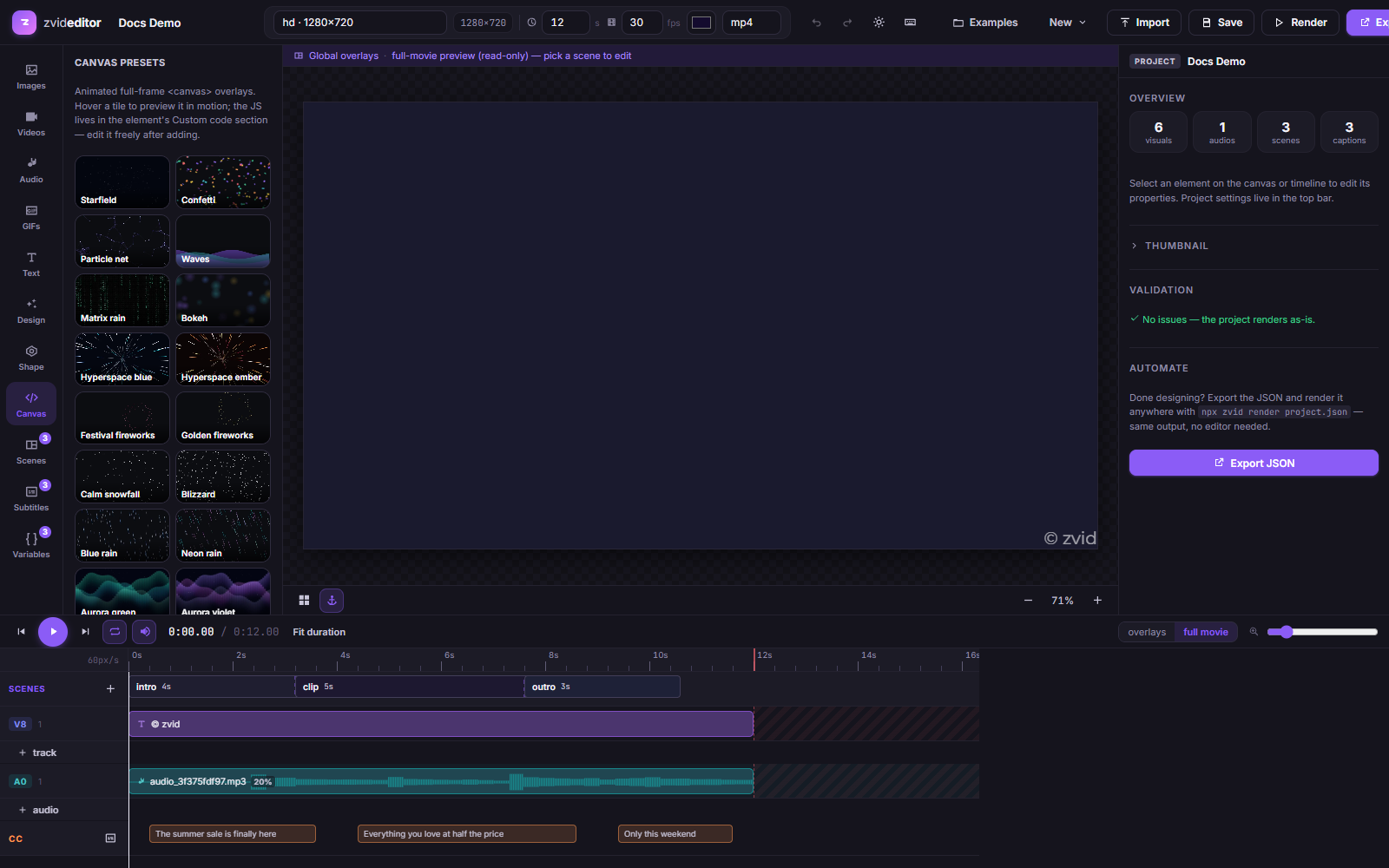
Applying one adds a full-frame element whose animation is editable
JavaScript (customCode.js in the JSON) with a configurable animation
duration — a starting point, not a black box.
Related
- Common element properties — the JSON behind the stage controls
- Timeline & scenes